linux系统安装
·
一. 常见发行版本
1. CentOS Stream

官网 https://www.centos.org
--centos已停止维护,采用CentOS stream 进行替代
2. 欧拉

官网 https://www.openeuler.openatom.cn/zh
3. 麒麟

官网 https://www.kylinos.cn
4.Ubuntu

官网 https://ubuntu.com
... 很多,不多做介绍
二. CentOS-sream安装
准备工具
* VMware 17 --需要可私信领取
* CentOS-stream镜像 --需要可私信领取
三. 新建虚拟机
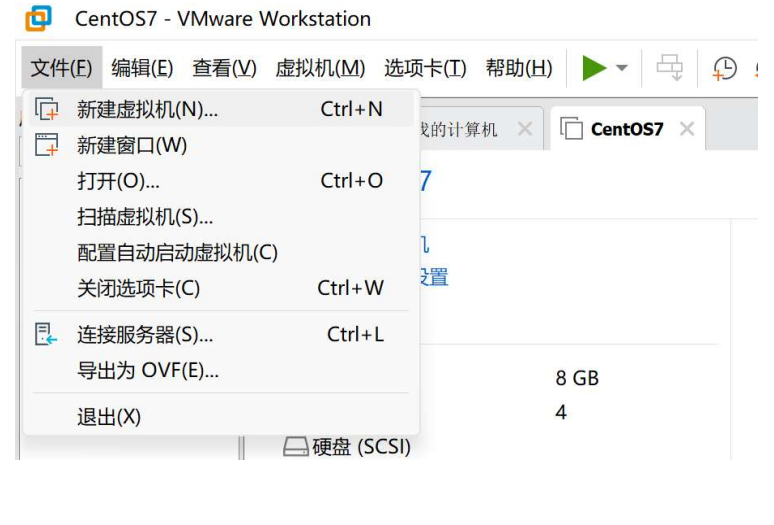
3.1 文件-右键-新建虚拟机
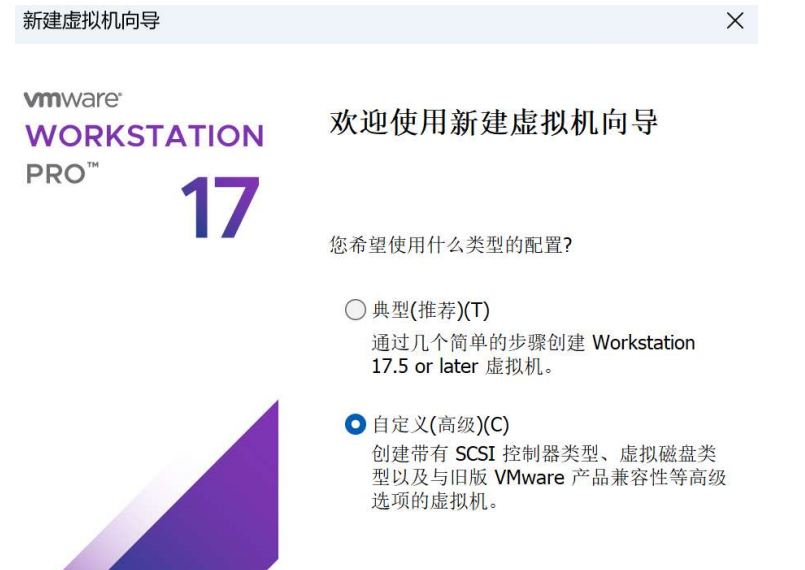
3.2 选择自定义
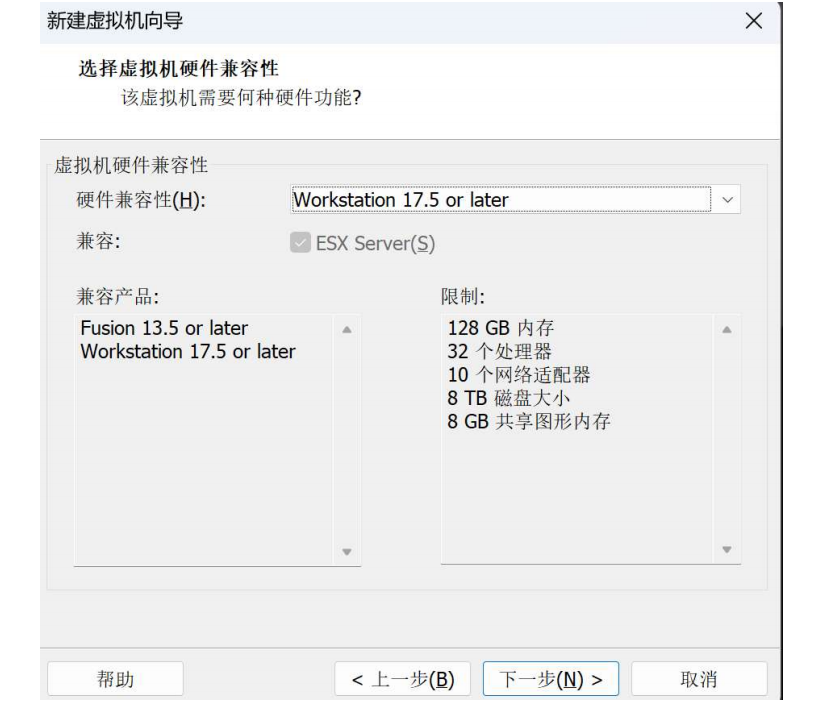
3.3 默认-下一步即可
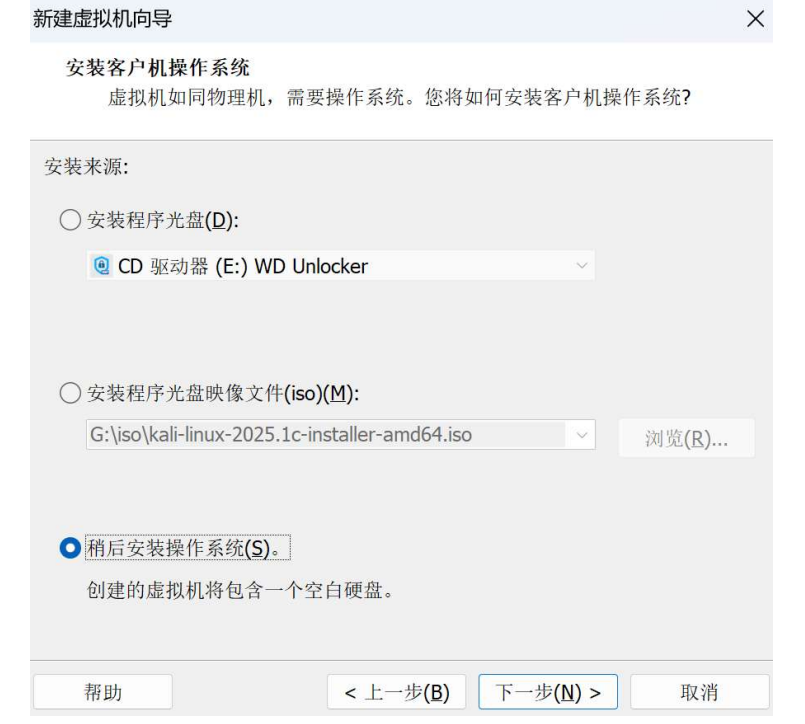
3.4 选择-稍后安装这个系统
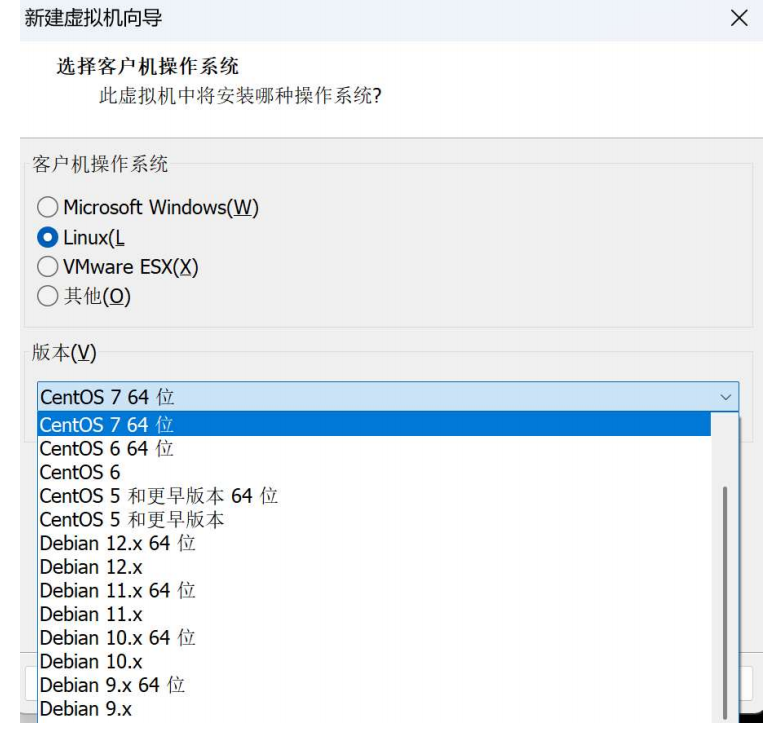
3.5 选择linux-CentOS 7 64位
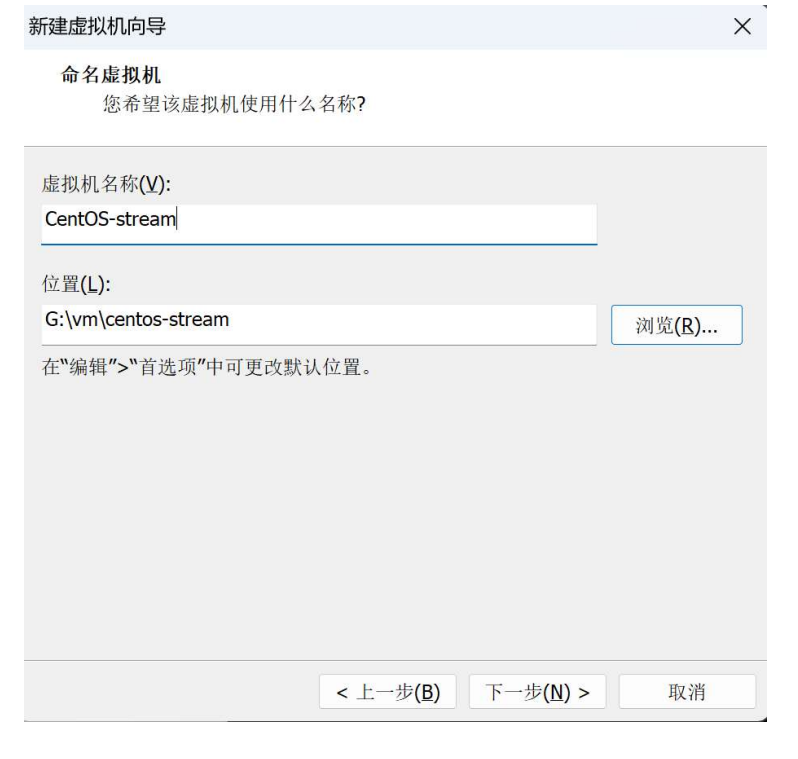
3.6 自定义一个虚拟机名称-选择存放的位置
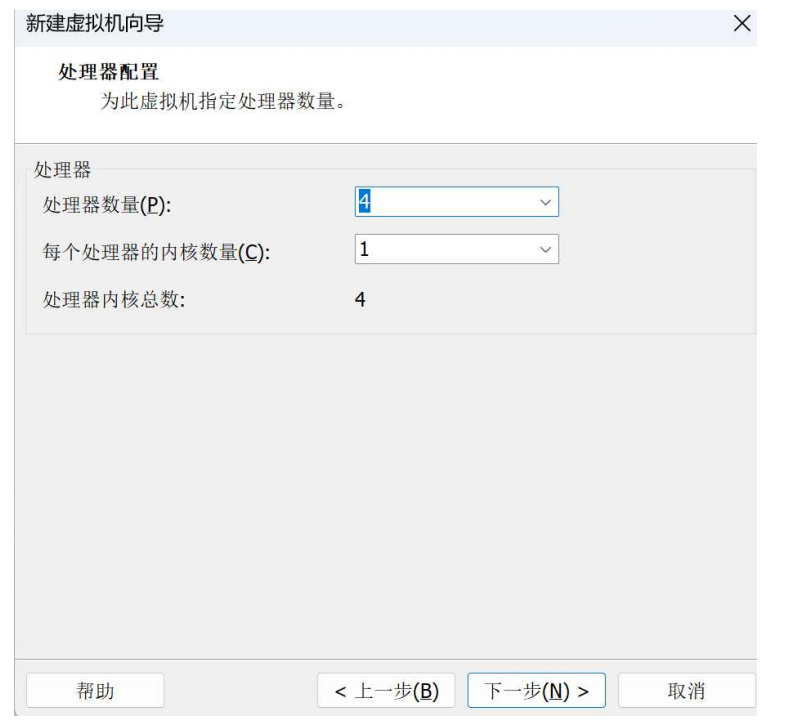
3.7 分配CPU
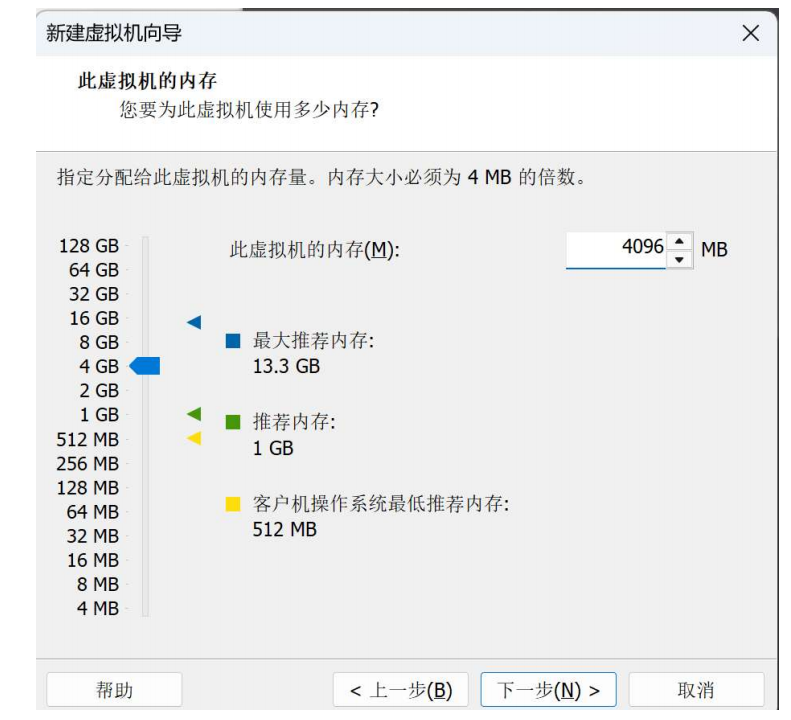
3.8 分配内存
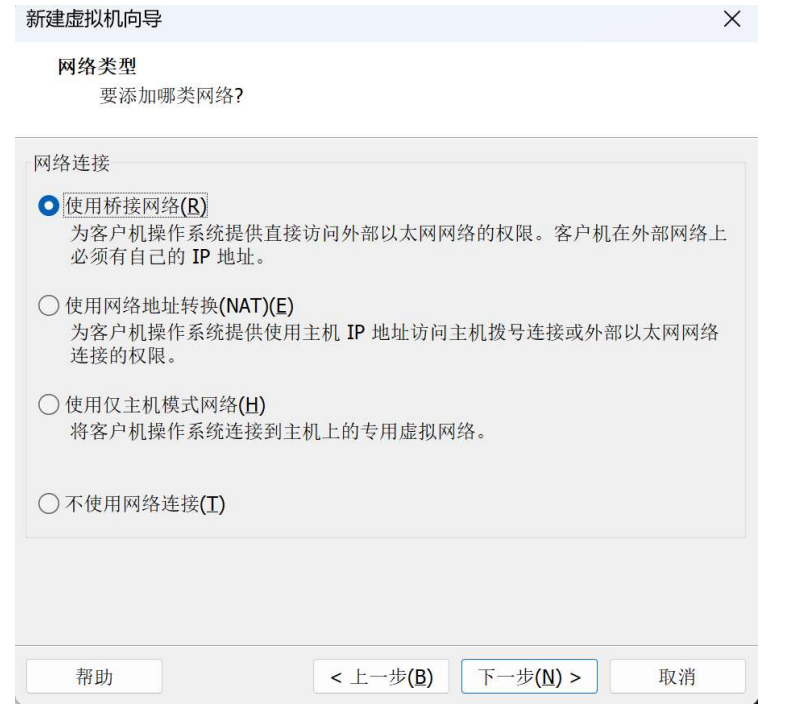
3.9 分配网卡
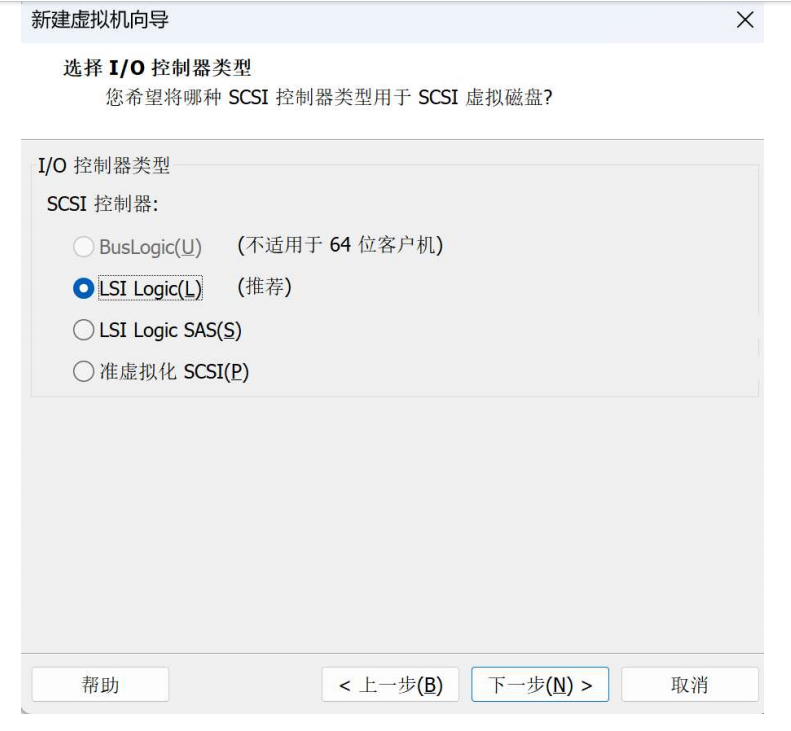
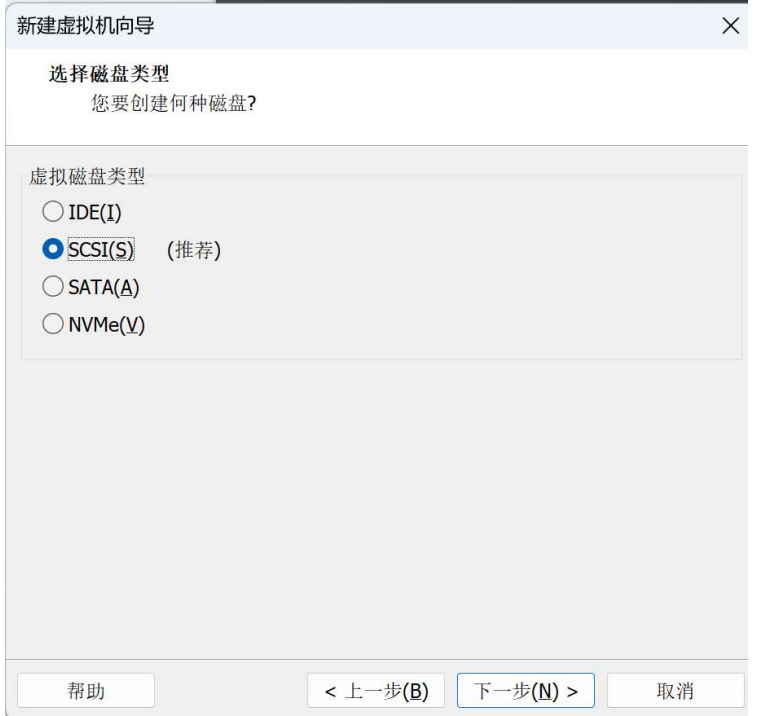
3.10 分配磁盘
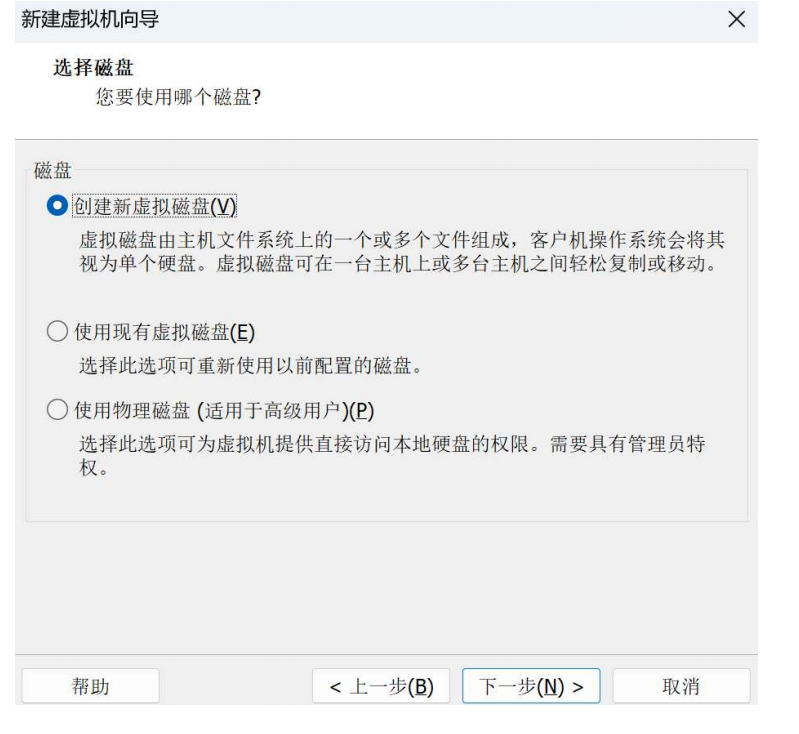
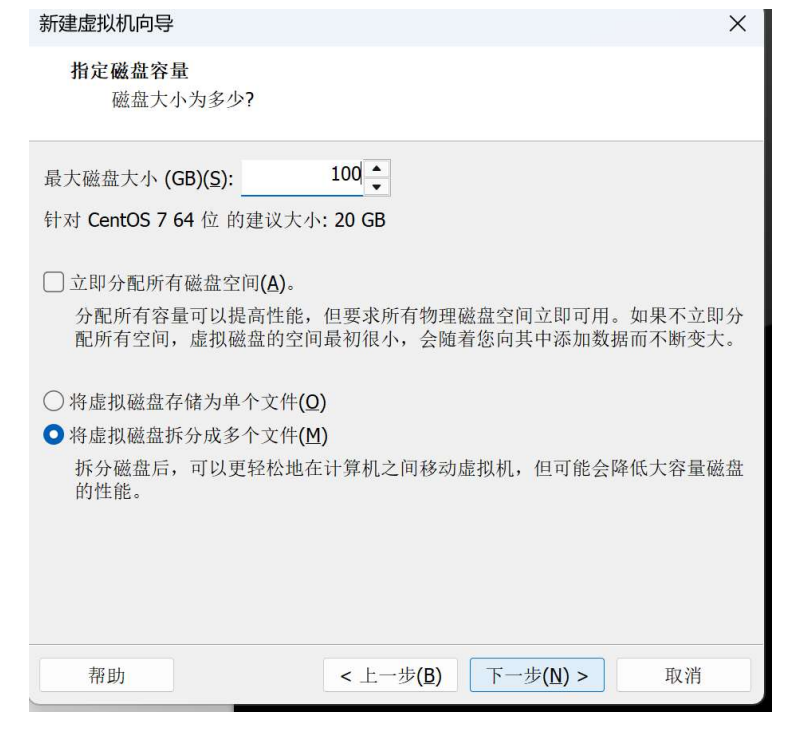
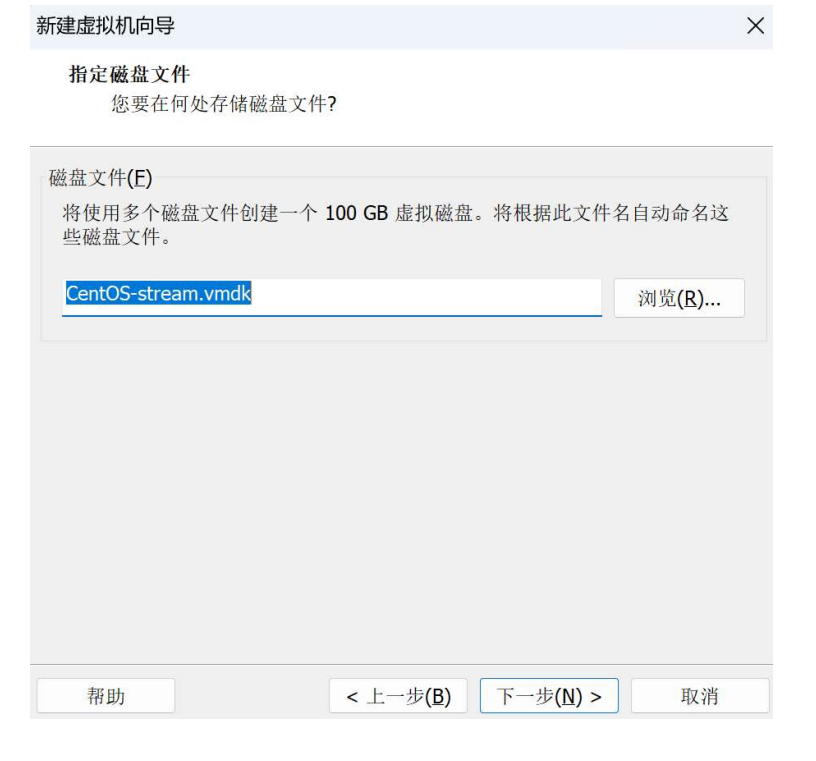
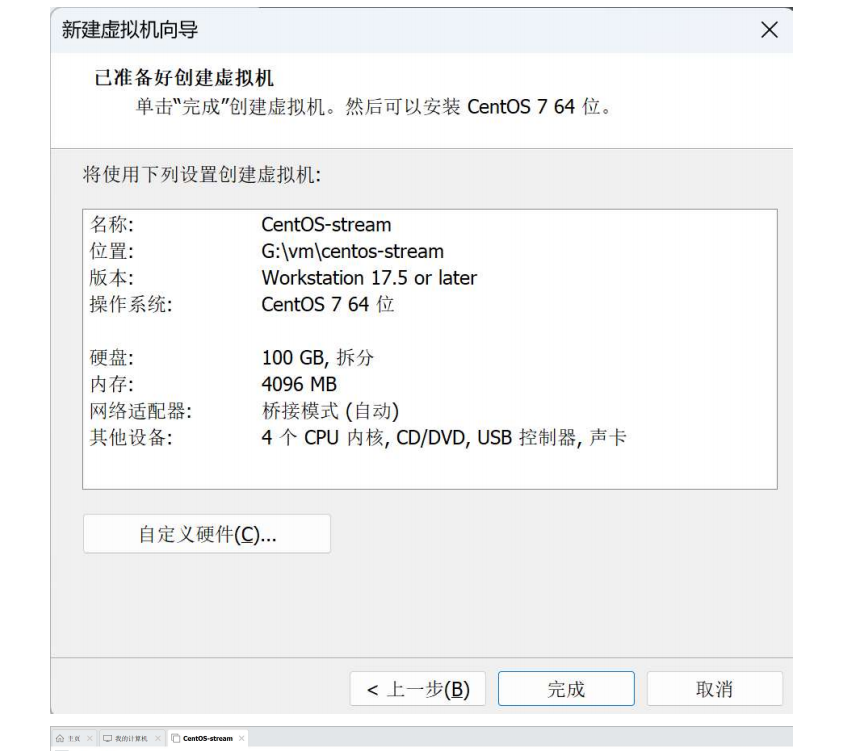
3.11 创建完成(相当于拥有了一台自己的服务器)
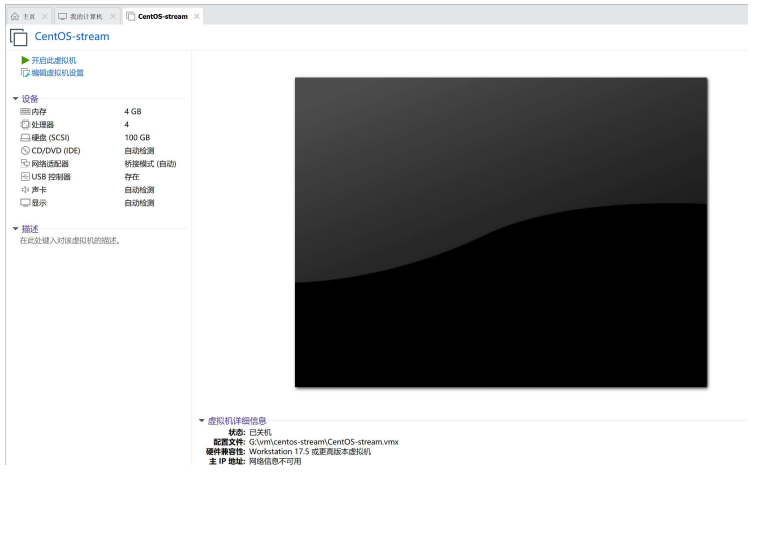
四. 开始安装
4.1 把ISO文件放入CD/DVD--点击CD/DVD
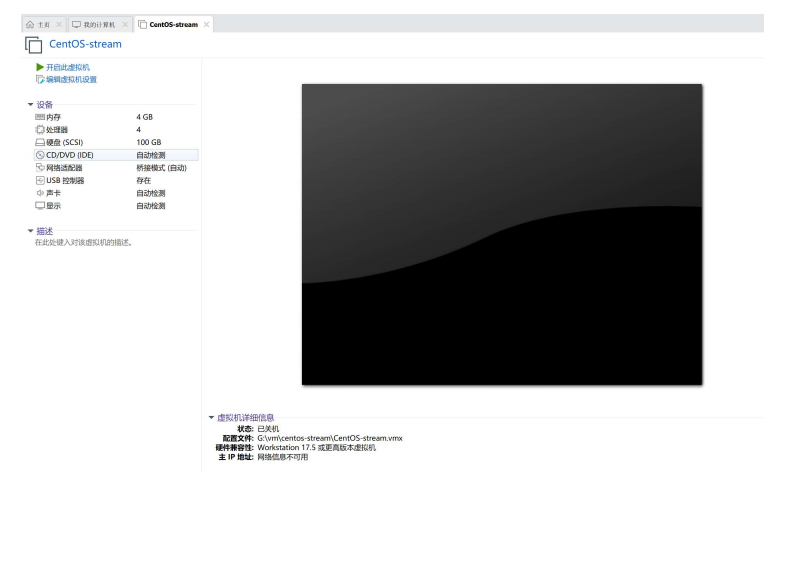
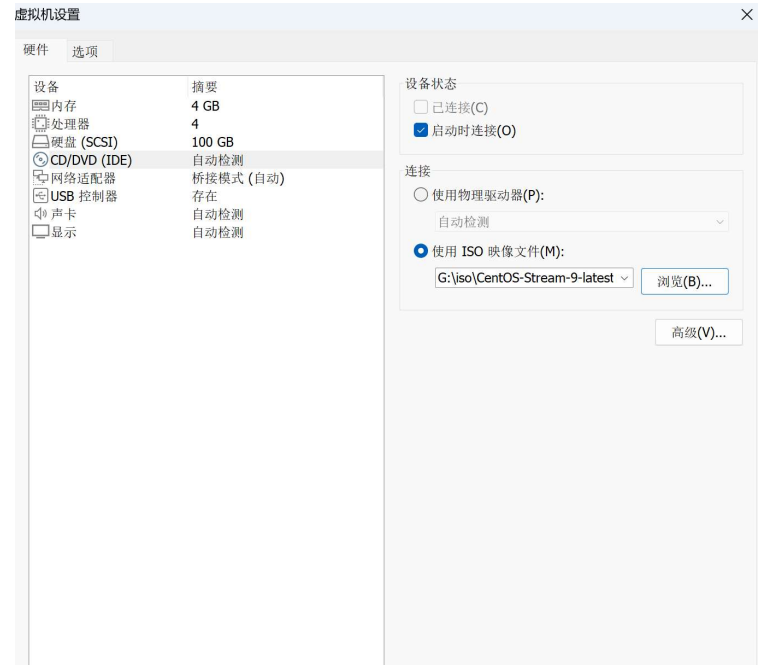
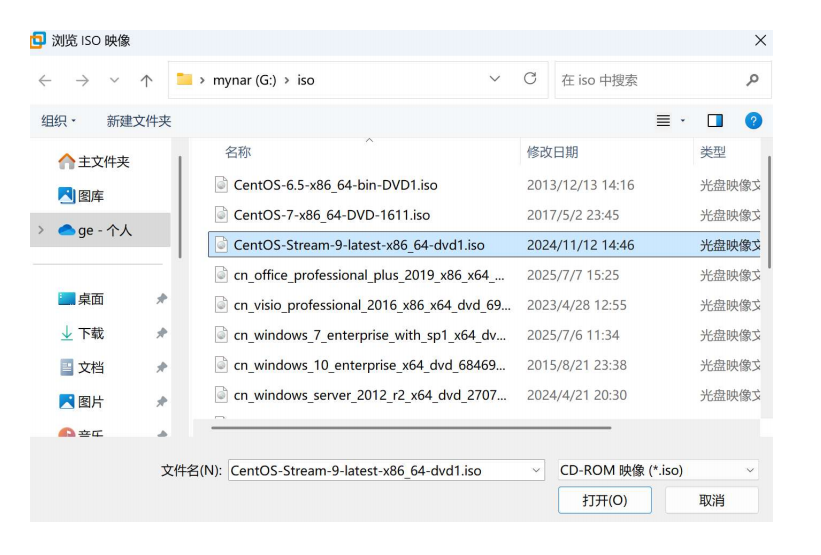
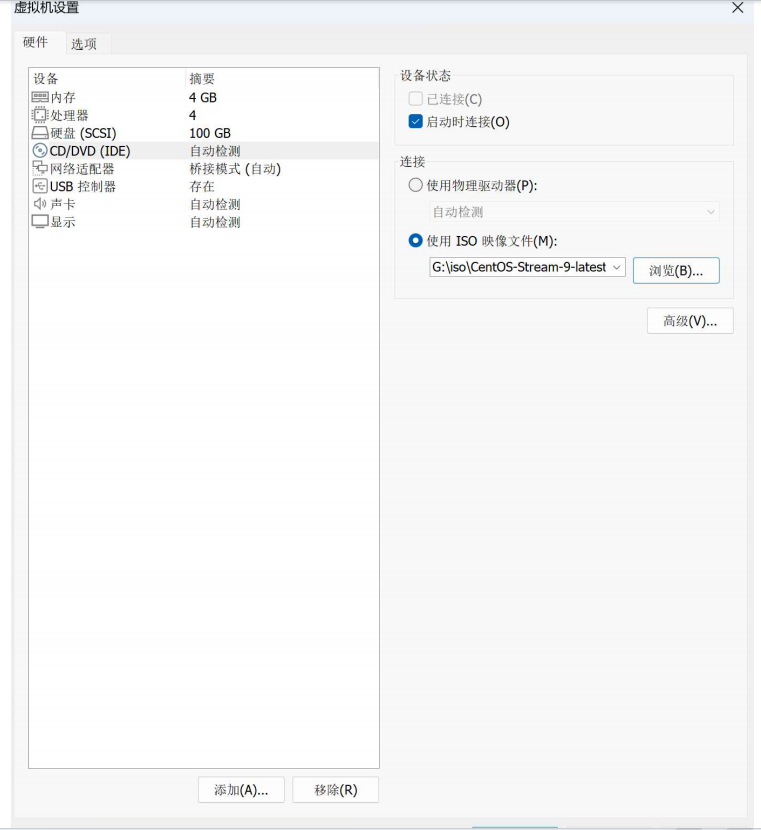
4.2 开机(点击 开启此虚拟机-自动进入安装界面)
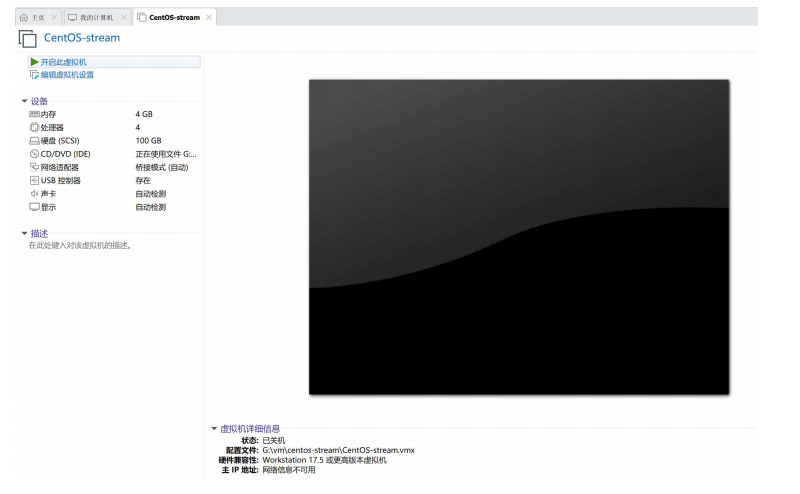
4.3 选择第一项- install centos stream 9
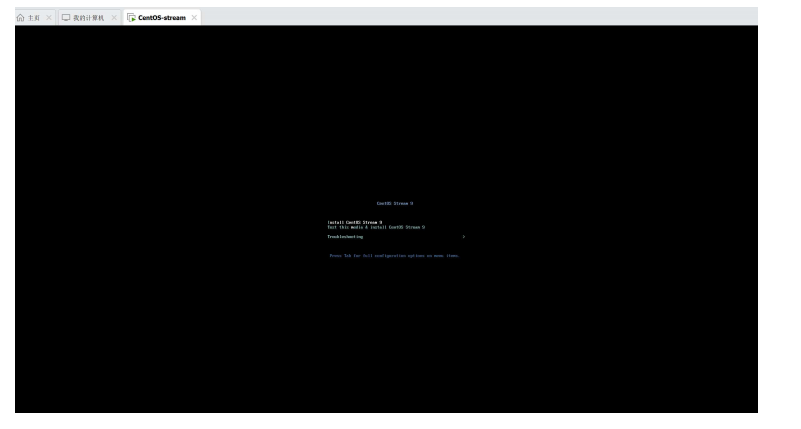
4.4 选择中文(新手推荐)-继续
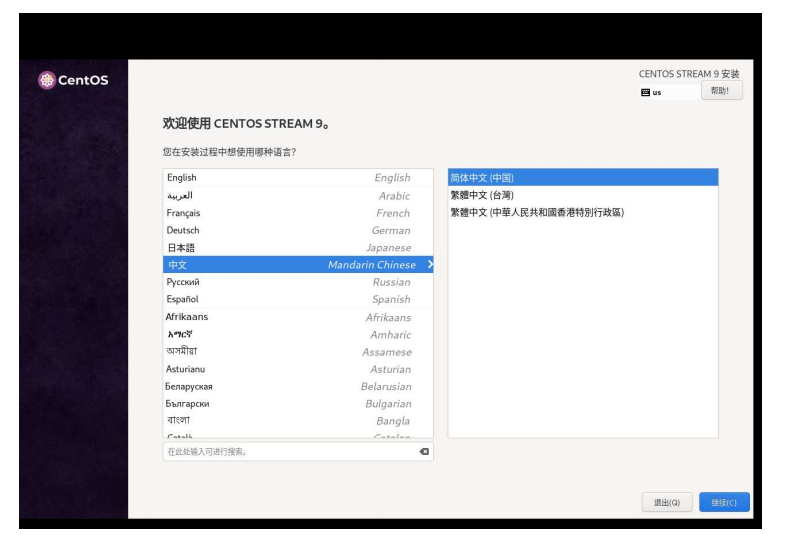
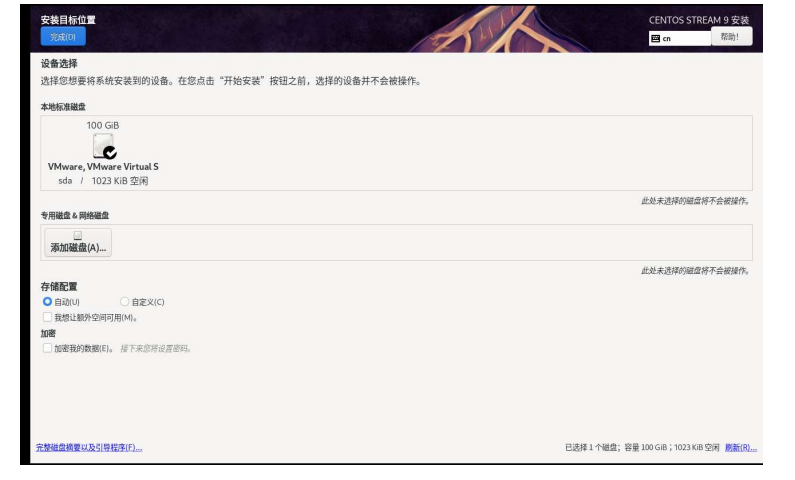
4.5 选择安装位置(安装到磁盘)
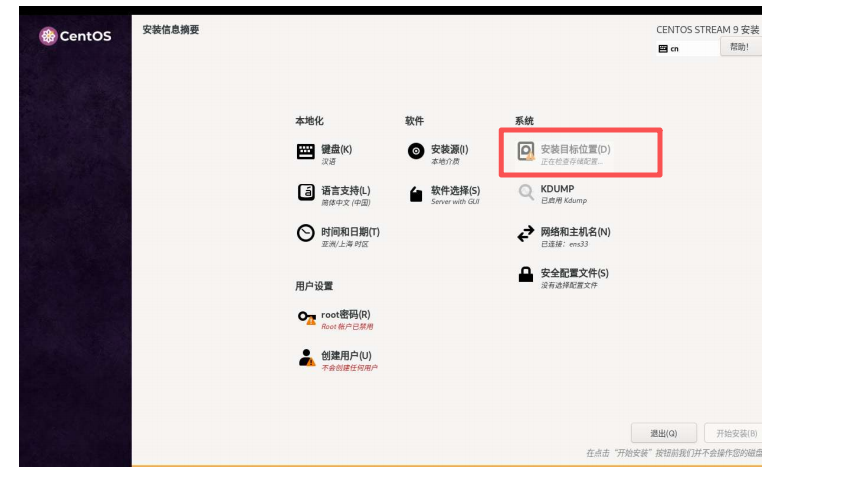
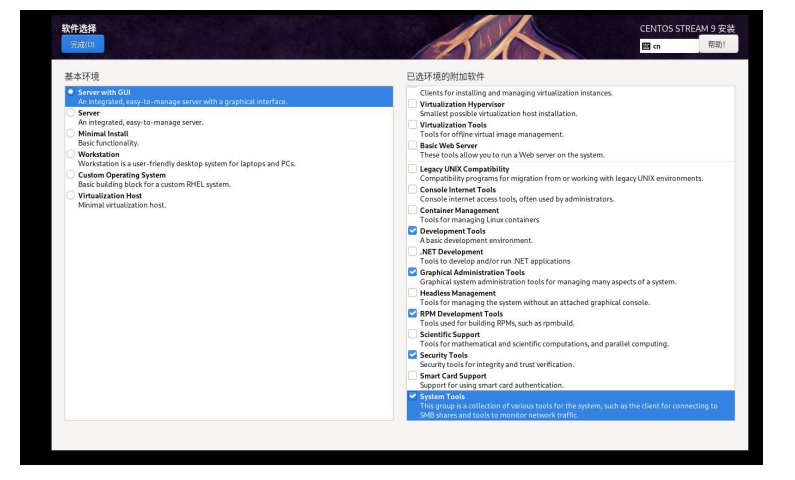
4.6 选择安装软件(新手推荐安装gui并勾选如图所示工具)
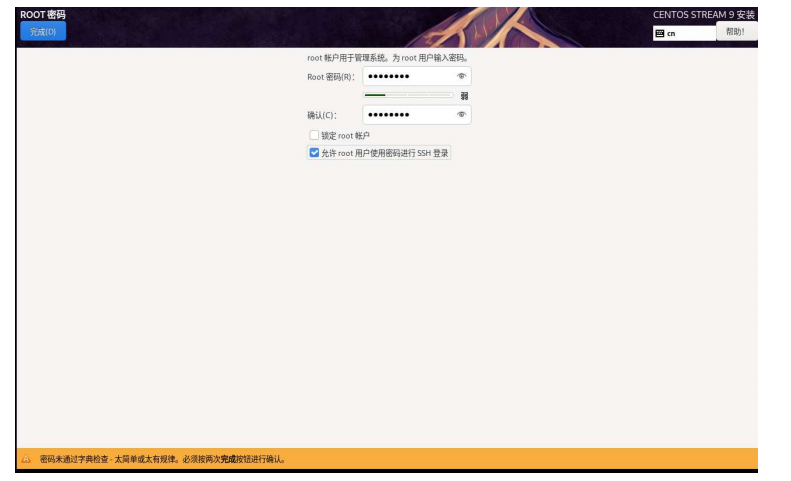
4.7 设置root密码
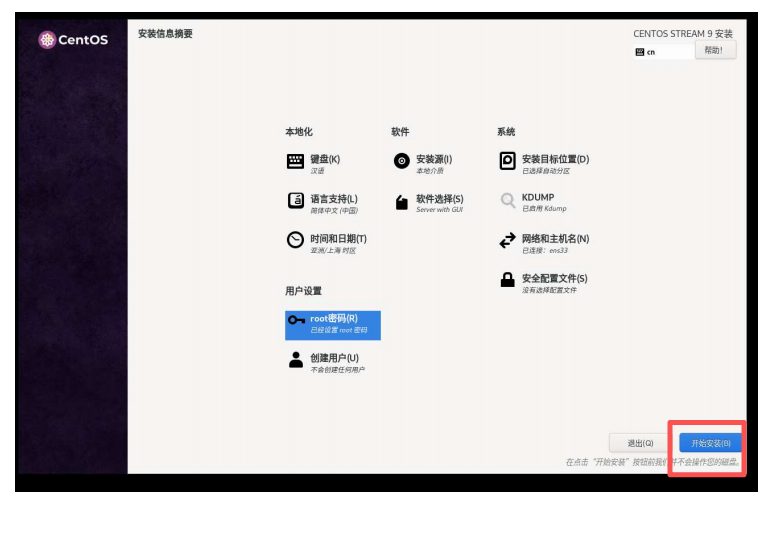
4.8 点击-开始安装
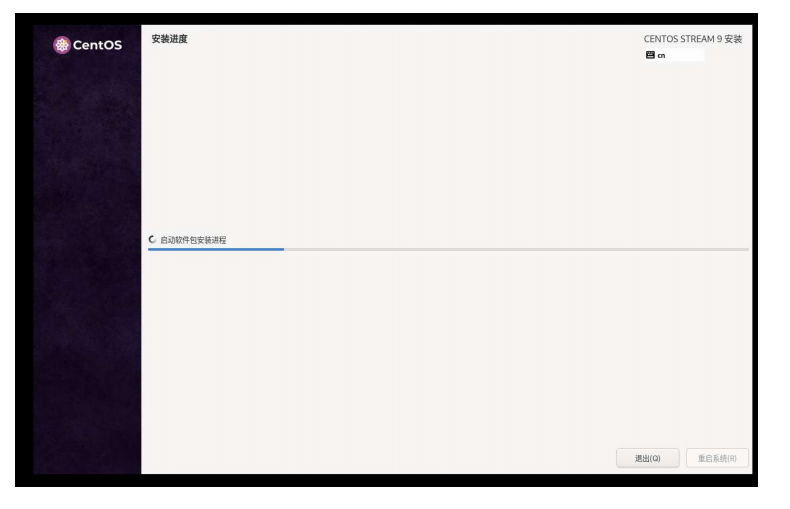
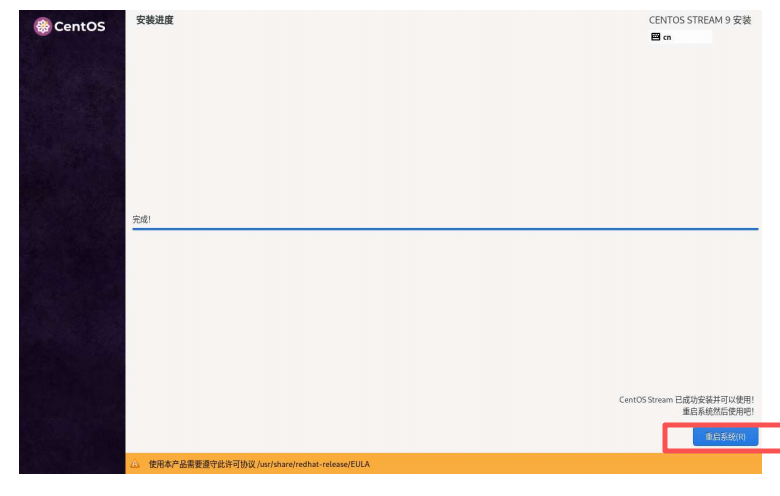
4.9 点击 重启系统-安装完成
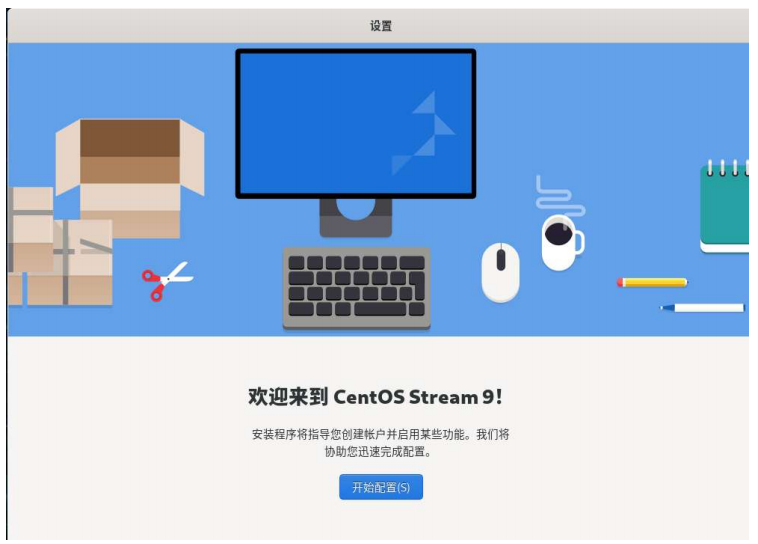
4.10 初始化配置
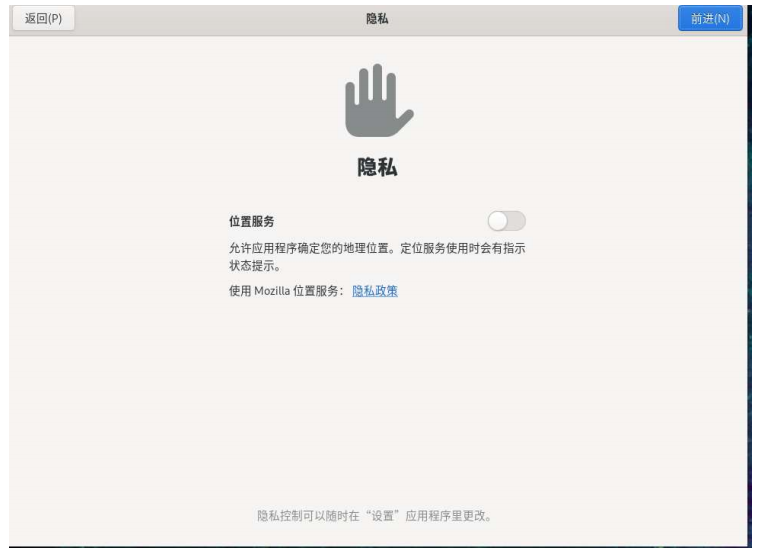
4.11 新建账户
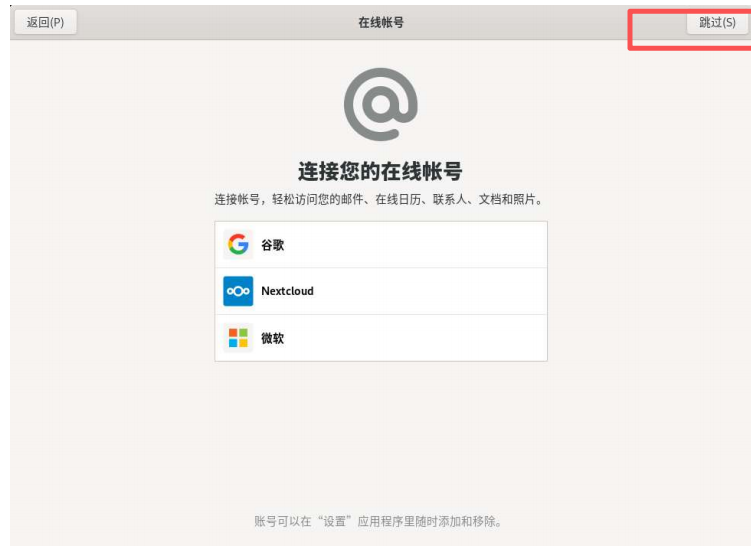
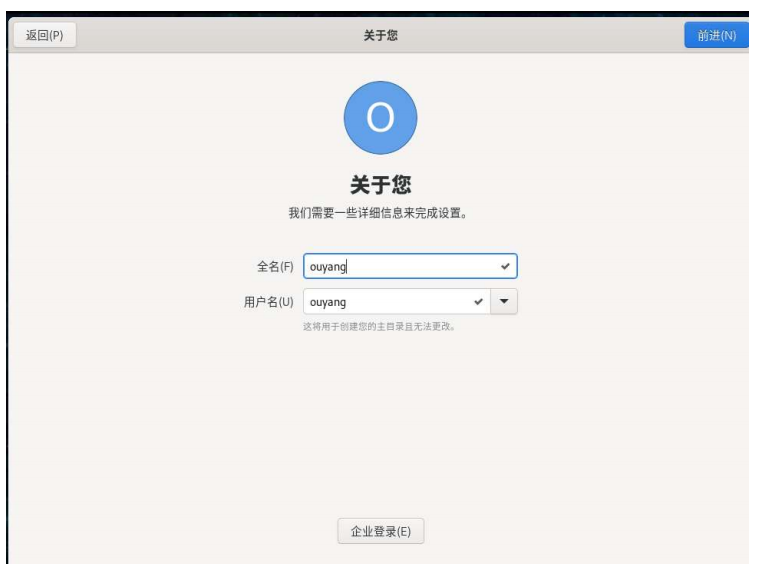
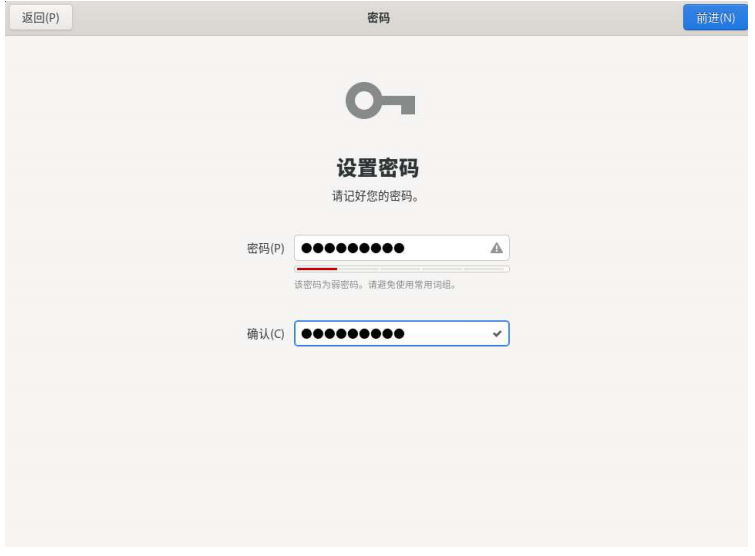
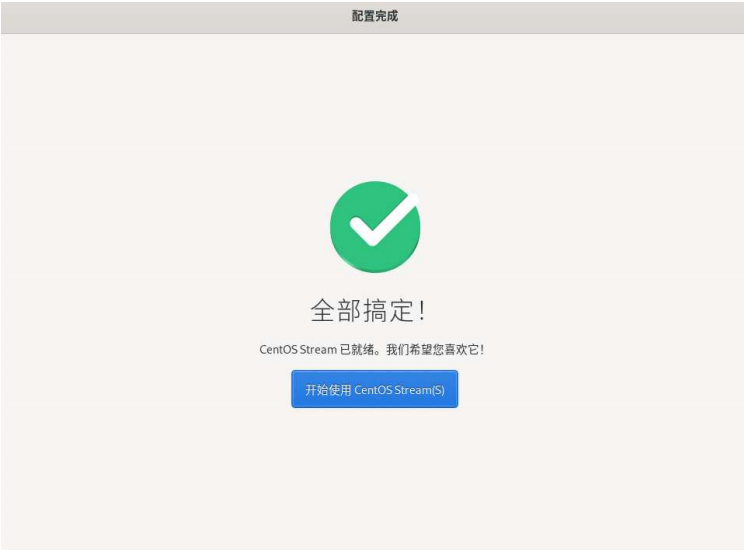
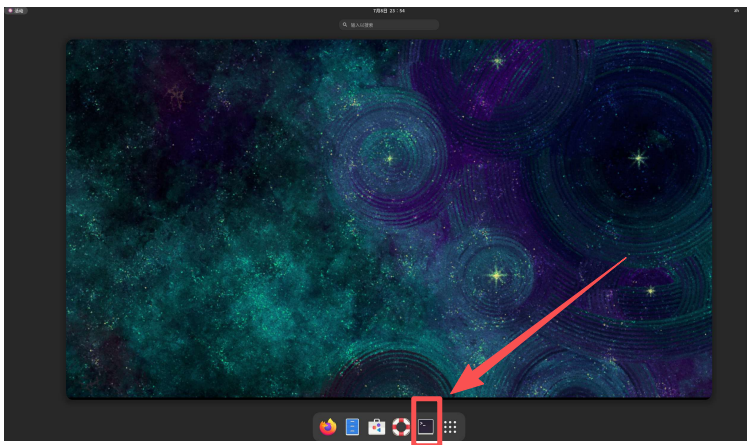
4.11 打开终端
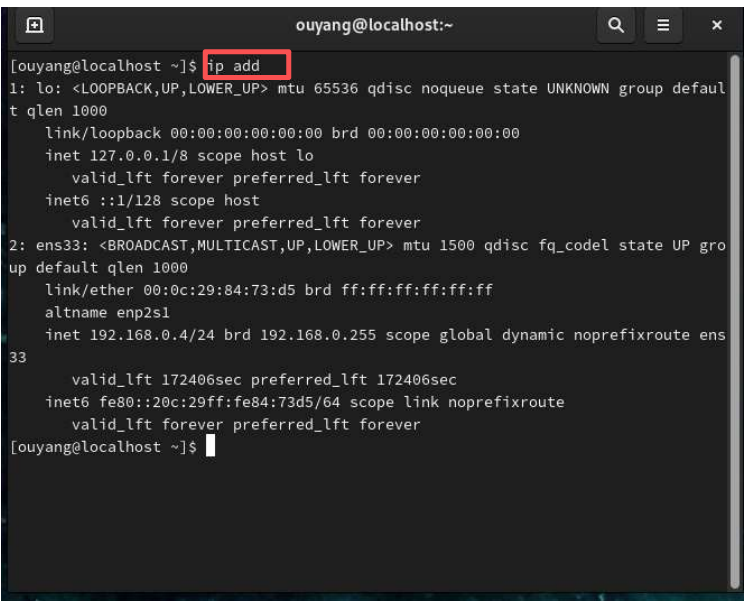
4.12 查看IP地址
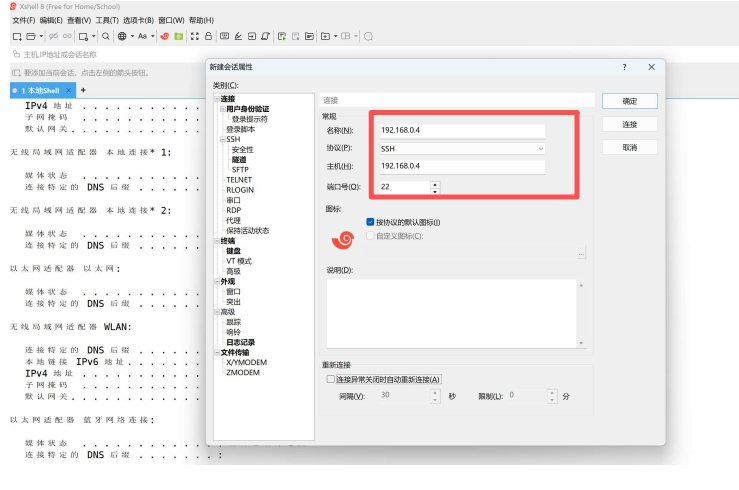
4.13 使用xshell工具远程登录服务器
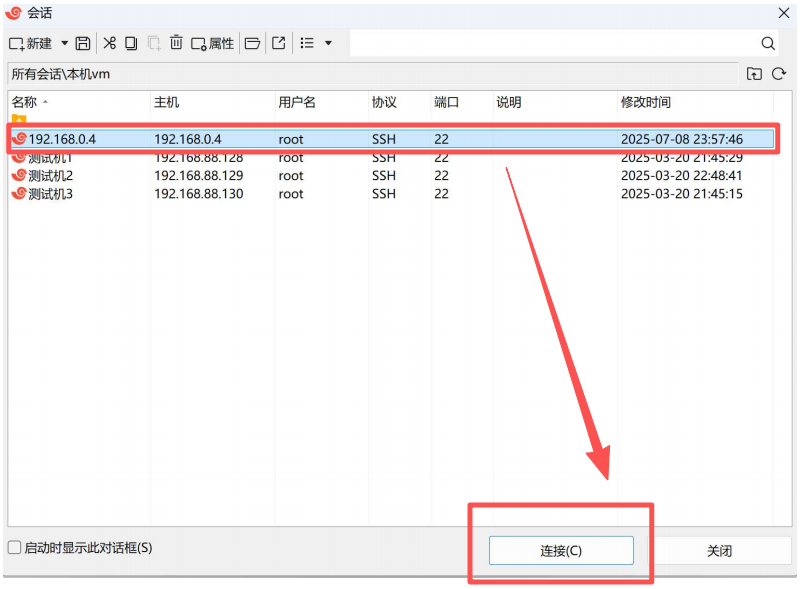
4.13.1 新建会话
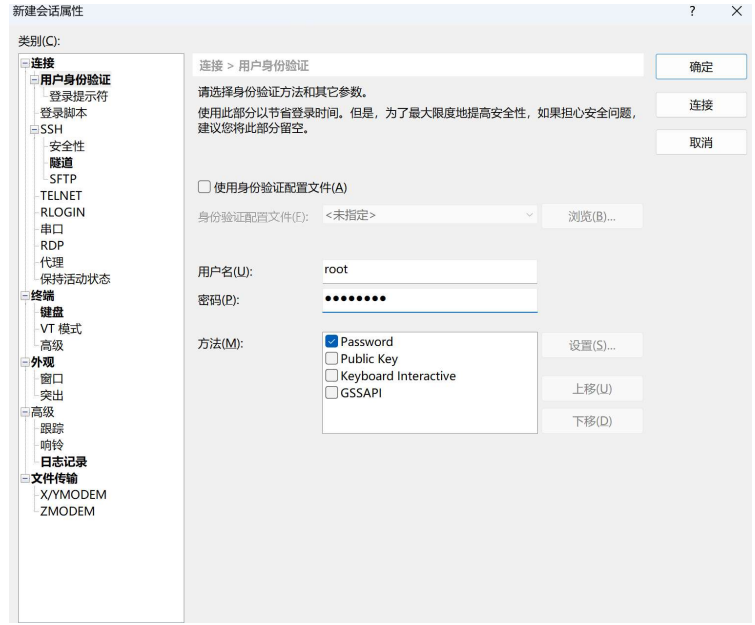
4.14.2 点击连接-登录服务器
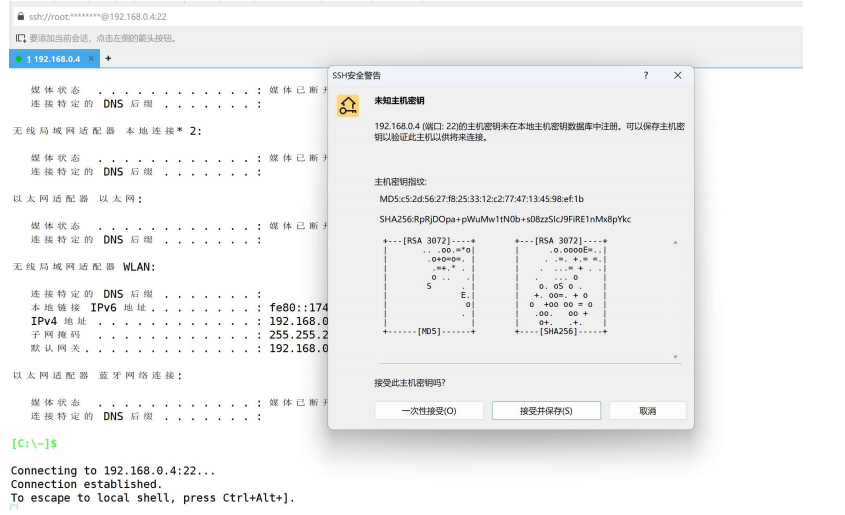
4.13.3 完成登录
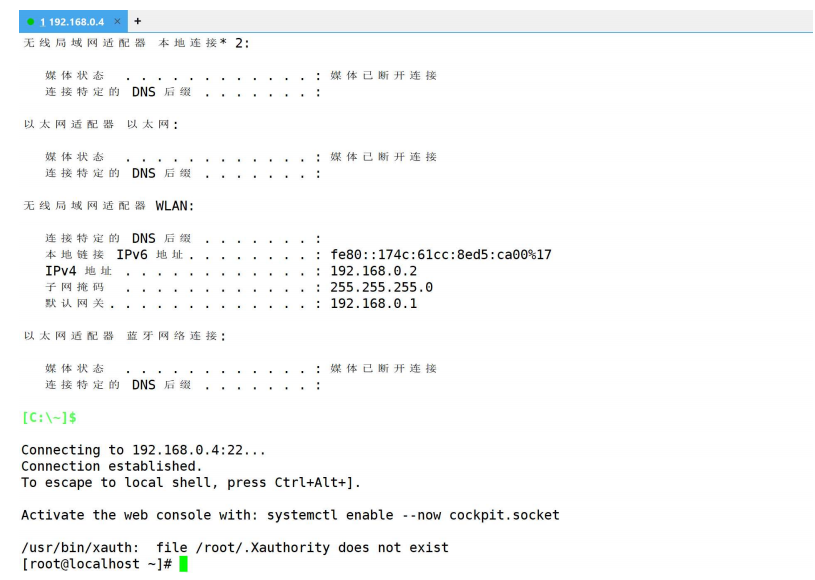
五. 安装后的配置
5.1 关闭防火墙
[root@localhost ~]# systemctl stop firewalld && systemctl disable firewalld Removed "/etc/systemd/system/multi-user.target.wants/firewalld.service". Removed "/etc/systemd/system/dbus-org.fedoraproject.FirewallD1.service".
5.2 禁用selinux
[root@localhost ~]# sed -i 's/SELINUX=enforcing/SELINUX=disabled/' /etc/selinux/config [root@localhost ~]# grep '^SELINUX=' /etc/selinux/config SELINUX=disabled
5.3 安装vim
[root@localhost ~]# dnf -y install vim
5.4 优化系统参数
tail -6 /etc/security/limits.conf * soft core 65535 * hard core 65535 * soft nofile 65535 * hard nofile 65535 * soft nproc 65535 * hard nproc 65535
5.5 重启系统
#重启
[root@localhost ~]# reboot
#关机
[root@localhost ~]# shutdown -h now
六. 问题总结
--请评论区留言。。。

北京人形旗下天工造物具身智能开源社区,聚焦具身天工与慧思开物两大平台
更多推荐
 6
6 0
0- 0


 已为社区贡献3条内容

所有评论(0)