微信小程序在web-view页面添加按钮
·
一、先看官网解释
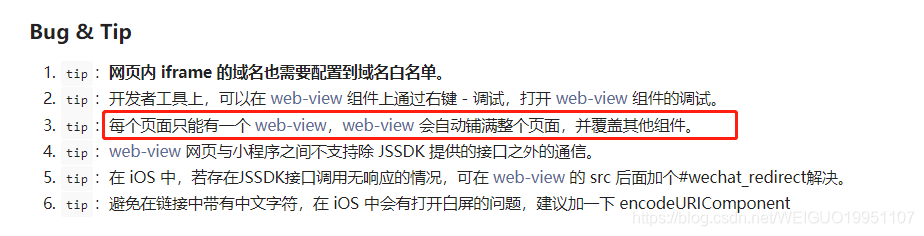
web-view 组件是一个可以用来承载网页的容器,会自动铺满整个小程序页面。这意味着在一个页面中只能存在一个 web-view 组件,并且它会覆盖页面上的其他组件。
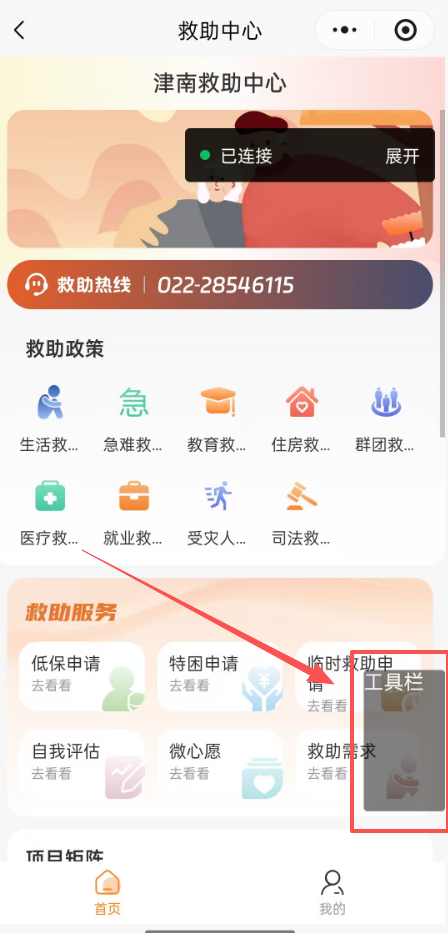
二、在web-view页面添加按钮
通过在web-view中嵌套cover-view标签来实现(注意: cover-view只支持嵌套 cover-view、cover-image
注意:
1. tool-bar需要绝对定位,并且z-index给的越大越好
2. 该方法在微信开发者工具中不显示效果,只能在真机上才能看到,一定要在真机上看效果
3. setTimeout延迟显示,兼容低端手机
4. url必须要经过后台域名白名单配置,否则上线不展示
<template>
  <web-view :src="url">
    <cover-view class="tool-bar" v-if="showToolBar"> 工具栏 </cover-view>
  </web-view>
</template>

<script>
export default {
  data() {
    return {
      url: "",
      showToolBar: false,
    };
  },
  onLoad(option) {
    // 解码URL参数
    this.url = decodeURIComponent(option.url);
    // 延迟显示工具栏,兼容低端手机
    setTimeout(() => {
      this.showToolBar = true;
    }, 1000);
  },
};
</script>

//给悬浮按钮写样式
<style lang="scss">
.tool-bar {
  color: #fff;
  position: fixed;
  bottom: 13%;
  right: 0rpx;
  width: 136rpx;
  height: 236rpx;
  border-radius: 8rpx;
  z-index: 999999;
  position: fixed;
  background-color: rgba(0, 0, 0, 0.5);
}
</style>

北京人形旗下天工造物具身智能开源社区,聚焦具身天工与慧思开物两大平台
更多推荐
 5
5 0
0- 0


 已为社区贡献16条内容

所有评论(0)