Windows(一)_powershell文件切分
·
传输文件时可能由于文件过大、网络波动等导致传输失败,选择切分文件传输可以很好的解决这个问题。
在上传Docker的tar包时,因传输限制,只能在本地Windows先切分上传到目标Linux服务器,再合并,启容器,上传后起容器发现报错,后进行下面详细的排查。
这里使用脚本进行切分:
桌面-新建split_script.ps1-以记事本方式打开-将以下内容复制进去-修改自己文件的路径
1. 切分文件
1.1 准备文件 split_script.ps1 编辑
# 路径重新手动输入
$inputFile = "D:\\Desktop\\PS2025.tar"
$outputFolder = "D:\\Desktop\\PS"
$chunkSize = 2GB
$bufferSize = 16MB

# 检查文件路径是否存在
if (!(Test-Path $inputFile)) {
    Write-Host "inputFile not exist:$inputFile"
    exit
}

# 确保输出目录存在
if (!(Test-Path $outputFolder)) {
    New-Item -ItemType Directory -Path $outputFolder | Out-Null
}

# 获取输入文件的文件名(包含扩展名)
$baseFileName = [System.IO.Path]::GetFileName($inputFile)

$fs = [System.IO.File]::OpenRead($inputFile)
$index = 0
$bytesReadTotal = 0

while ($fs.Position -lt $fs.Length) {
    $outputFileName = "$baseFileName.part$index"
    $outputFile = Join-Path -Path $outputFolder -ChildPath $outputFileName
    $outFs = [System.IO.File]::Create($outputFile)

    $bytesWritten = 0
    $buffer = New-Object byte[] $bufferSize

    while ($bytesWritten -lt $chunkSize -and ($read = $fs.Read($buffer, 0, $buffer.Length)) -gt 0) {
        $outFs.Write($buffer, 0, $read)
        $bytesWritten += $read
        $bytesReadTotal += $read
    }

    $outFs.Close()
    $index++
}

$fs.Close()
Write-Host "Split completed! Parts saved to: $outputFolder"
1.2 进入powershell运行
powershell -ExecutionPolicy Bypass -File D:\\Desktop\\split_script.ps1
1.3 输出结果
(base) PS D:\\Desktop> powershell -ExecutionPolicy Bypass -File D:\\Desktop\\split_script.ps1
Split completed! Parts saved to: D:\\Desktop\\PS
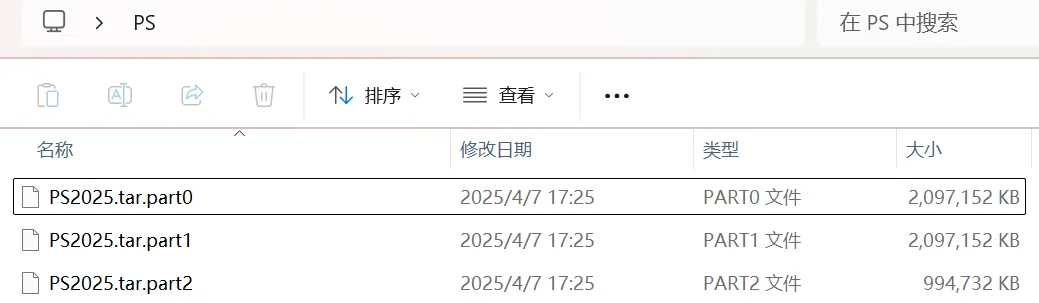
2. 合并文件
特别注意:要注意合并文件的顺序
-
在合并时遇到的问题:
使用cat backup.tar.part > hdwrite_v1.1.tar合并了,使用dokcer load -i hdwrite_v1.1.tar,报错文件损坏,我检查了13个backup.tar.part*文件的md5值都是相同的,但是hdwrite_v1_1.tar与hdwrite_v1.1.tar的md5值不同什么原因,如何解决?
2.1 检查文件顺序
ls -1 backup.tar.part* # 检查文件顺序
发现确实是 合并顺序不同
2.2 运行命令按分割顺序合并
cat $(ls -v backup.tar.part*) > hdwrite_v1.1.tar
最后成功!

北京人形旗下天工造物具身智能开源社区,聚焦具身天工与慧思开物两大平台
更多推荐
 3
3 0
0- 0


 已为社区贡献1条内容

所有评论(0)