新版xcode中,请求http接口报错The resource could not be loaded because the App Transport Security policy requir
xcode版本16
测试代码:
func performLoginRequest() {
            // 1. 定义请求的 URL
            guard let url = URL(string: "http://-----") else {
                print("Error: Invalid URL for login request.")
                return
            }

            // 2. 定义请求参数
            let parameters: [String: Any] = [
                "user_name": "admin",
                "user_type": 0,
                "tenant_name": "system",
                "login_url": "-----",
                "password": "-----"
            ]

            // 3. 将参数转换为 JSON Data
            guard let httpBody = try? JSONSerialization.data(withJSONObject: parameters, options: []) else {
                print("Error: Could not convert parameters to JSON data.")
                return
            }

            // 4. 创建 URLRequest
            var request = URLRequest(url: url)
            request.httpMethod = "POST"
            request.setValue("application/json", forHTTPHeaderField: "Content-Type") // 设置Content-Type为JSON
            request.httpBody = httpBody

            // 5. 使用 URLSession 发送请求
            let task = URLSession.shared.dataTask(with: request) { data, response, error in
                if let error = error {
                    print("Error during HTTP request: \(error.localizedDescription)")
                    // 尝试打印更详细的错误信息,例如域名解析失败等
                    if let nsError = error as NSError? {
                        print("NS Error Code: \(nsError.code)")
                        print("NS Error Domain: \(nsError.domain)")
                        print("NS Error UserInfo: \(nsError.userInfo)")
                    }
                    return
                }

                guard let httpResponse = response as? HTTPURLResponse else {
                    print("Error: Invalid HTTP response.")
                    return
                }

                print("HTTP Status Code: \(httpResponse.statusCode)")

                if let data = data {
                    // 尝试将响应数据转换为字符串或 JSON
                    if let responseString = String(data: data, encoding: .utf8) {
                        print("HTTP Response String: \(responseString)")
                    }

                    do {
                        if let jsonResponse = try JSONSerialization.jsonObject(with: data, options: []) as? [String: Any] {
                            print("HTTP JSON Response: \(jsonResponse)")
                        } else {
                            print("HTTP Response is not a valid JSON dictionary.")
                        }
                    } catch {
                        print("Error parsing JSON response: \(error.localizedDescription)")
                    }
                } else {
                    print("Error: No data received in response.")
                }
            }

            // 6. 启动任务
            task.resume()
        }
报错信息:
Error during HTTP request: The resource could not be loaded because the App Transport Security policy requires the use of a secure connection.
NS Error Code: -1022
NS Error Domain: NSURLErrorDomain
NS Error UserInfo: [“_NSURLErrorFailingURLSessionTaskErrorKey”: LocalDataTask <59E36E20-61B2-4D67-AE2B-531076A7D2E9>.<1>, “_NSURLErrorRelatedURLSessionTaskErrorKey”: <__NSSingleObjectArrayI 0x6000000048d0>(
LocalDataTask <59E36E20-61B2-4D67-AE2B-531076A7D2E9>.<1>
)
, “NSErrorFailingURLKey”: http://183.17.228.131:8090/v1/auth/login, “NSLocalizedDescription”: The resource could not be loaded because the App Transport Security policy requires the use of a secure connection., “NSUnderlyingError”: Error Domain=kCFErrorDomainCFNetwork Code=-1022 “(null)”, “NSErrorFailingURLStringKey”: http://183.17.228.131:8090/v1/auth/login]
说是新版xcode和ios限制不许访问http
网上都说修改Info.plist文件,但新版xcode创建的项目没有Info.plist文件
解决办法:
info→custom ios target properties中添加:
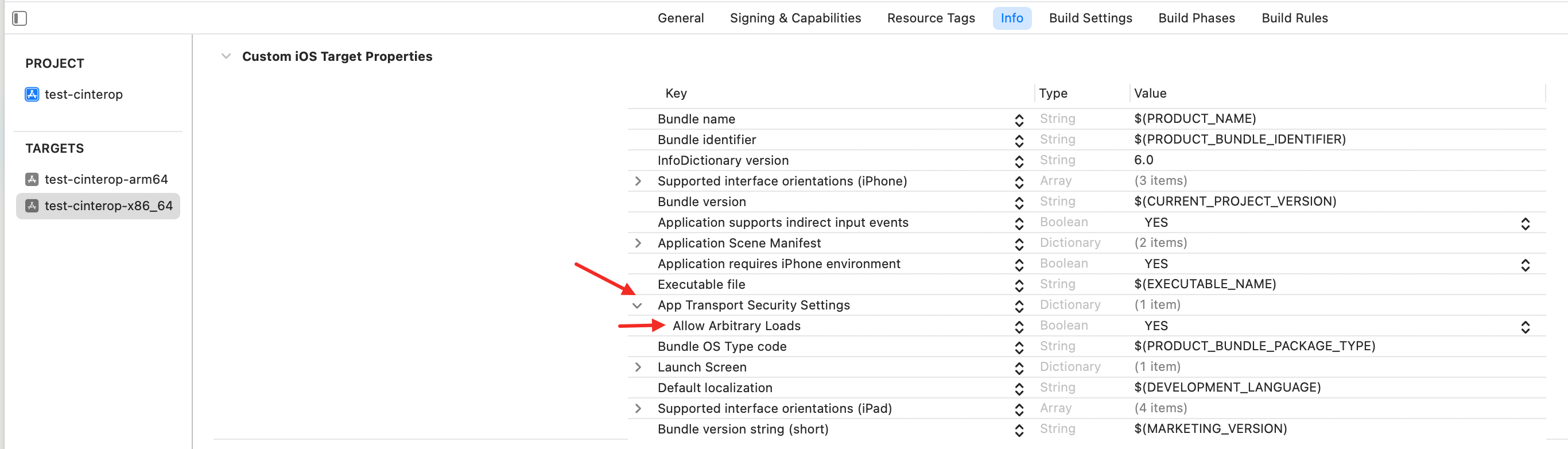
build setting中的info.plist values不用管;
到这里应该就结束了,结果运行还是报错啊
需要彻底清除缓存:
-
Product > Clean Build Folder (Shift + Command + K)。
-
删除 Derived Data:
Xcode > Settings… (或 Preferences… for older versions of Xcode)。
选择 Locations 选项卡。
点击 “Derived Data” 路径旁边的箭头,在 Finder 中打开该文件夹。
删除该文件夹内的所有内容(不是删除文件夹本身)。 -
重新打开 Xcode,并再次运行

北京人形旗下天工造物具身智能开源社区,聚焦具身天工与慧思开物两大平台
更多推荐
 5
5 0
0- 0


 已为社区贡献7条内容

所有评论(0)