uniapp上架华为、小米等应用商店,应用授权审核被卡,如何监听授权的弹出?
·
效果展
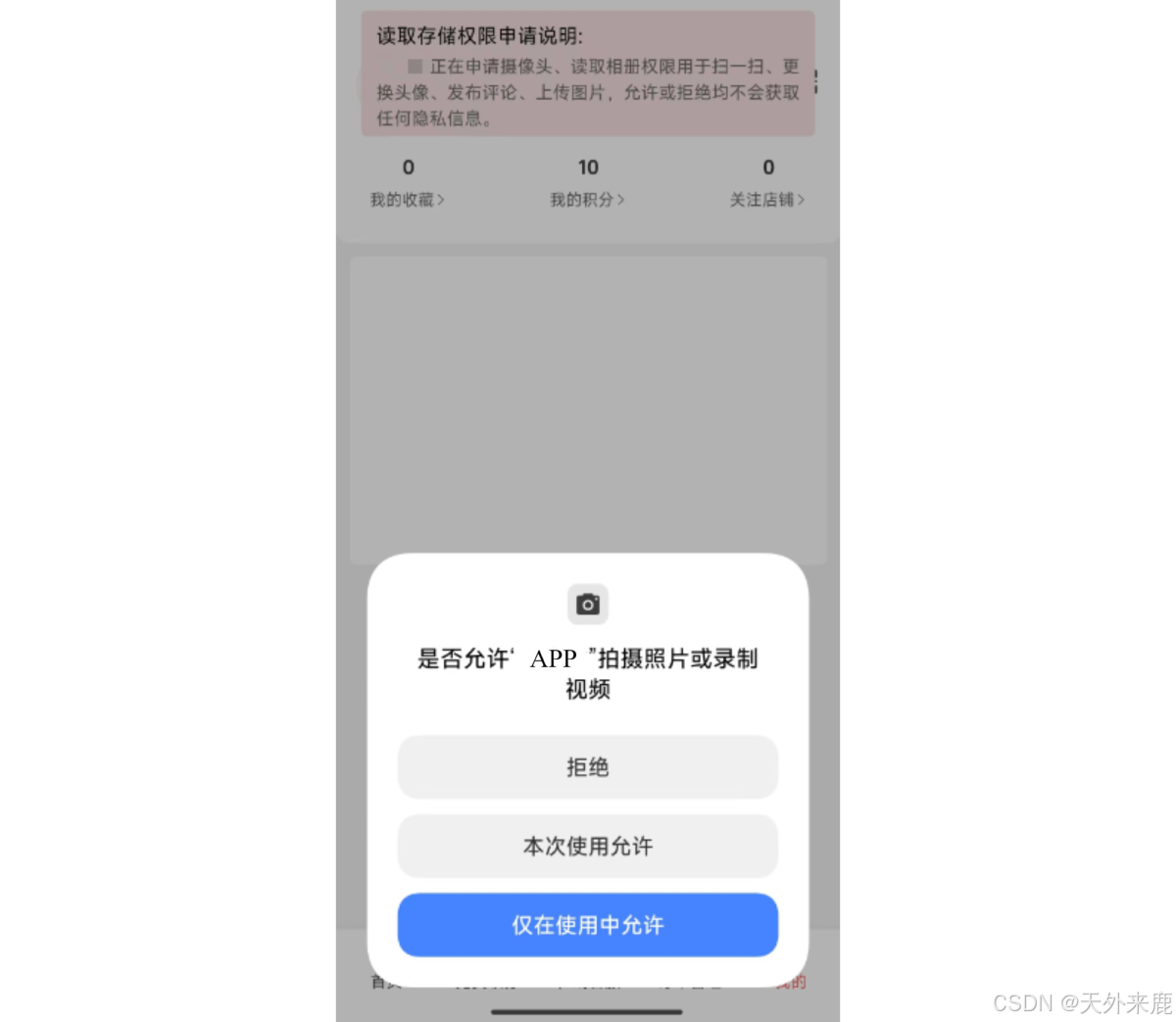
核心代码
uni.createRequestPermissionListener()
注意事项
- 我用的是vue3的uniapp + vuex,大家根据自己实际的情况去改;
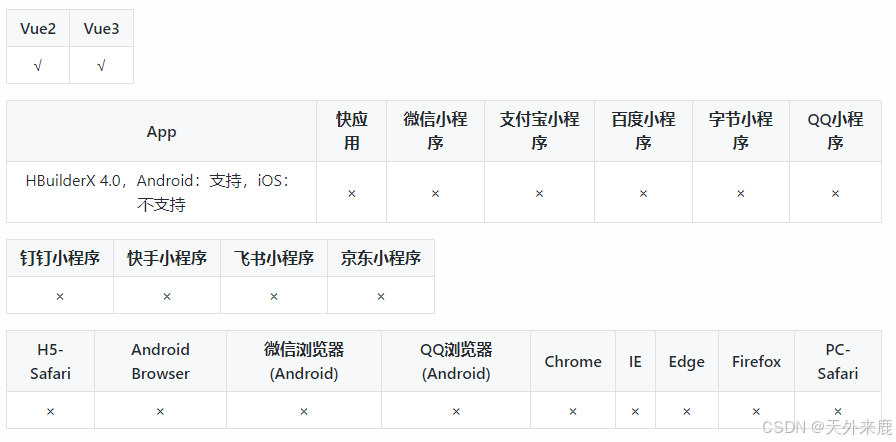
- 本写法最低版本需要hbuilderx4.0以上,如果是hbuilderx创建的uniapp项目直接升级hbuildx即可,如果是cli创建的项目请移步看我的另一篇文章:cli创建项目编译器版本不同步
- 如扫码之类的,在拒绝授权之后再次点击重新发起授权需要自定义逻辑,如扫码的需要先通过
requestAndroidPermission("android.permission.CAMERA")或judgeIosPermission("camera")判断是否有权限再看要不要调用扫码(因为不提前判断的话会打开扫码界面,只不过中心文字是无扫码权限)- 该写法不兼容ios
- 官方集成了一部分,可选择用官方插件
完整代码
store.js
state: {
	// permissionListener: null,
    persimmionList: [
        {
            name: "ACCESS_FINE_LOCATION",
            title: "手机位置权限申请说明:",
            content: "APP正在申请手机地理位置权限,用于推荐距离更近的套餐,允许或拒绝均不会获取任何隐私信息。",
        }, {
            name: "CALL_PHONE",
            title: "拨打电话权限申请说明:",
            content: "APP正在申请拨打电话权限,用于联系商家、客服,允许或拒绝均不会获取任何隐私信息。",
        }, {
            name: "CAMERA",
            title: "读取存储权限申请说明:",
            content: "APP正在申请摄像头、读取相册权限用于扫一扫、更换头像、发布评论、上传图片,允许或拒绝均不会获取任何隐私信息。",
        }, {
            name: "NotificationManagerCompat",
            title: "通知权限申请说明:",
            content: "APP正在申请获取通知权限,用于向您推送订单状态、优惠券状态等通知,允许或拒绝均不会获取任何隐私信息。",
        }, {
            name: "WRITE_EXTERNAL_STORAGE",
            title: "相册写入权限申请说明:",
            content: "APP正在申请获取相册写入权限,用于保存图片至您的相册,允许或拒绝均不会获取任何隐私信息。",
        }
    ],
    dialogView: null
},
mutations: {
	SET_DIALOG_VIEW(state, data) {
        state.dialogView = data;
    },
    SET_PERMISSION_LISTENER(state, data) {
        state.permissionListener = data;
    },
},
actions: {
	//监听授权
	watchPermission({ commit, state, dispatch }){
        commit('SET_PERMISSION_LISTENER', uni.createRequestPermissionListener())
        state.permissionListener.onConfirm((e) => {
            if(e[e.length - 1].toUpperCase().includes('CAMERA') || e[e.length - 1].toUpperCase().includes('READ_MINE') || e[e.length - 1].toUpperCase().includes('PHOTOLIBRARY')){
            	console.log('弹窗提示照片和视频、摄像头、相机授权')
                dispatch('dialogStyle', 2)
            }else if(e[e.length - 1].toUpperCase().includes('LOCATION')){
                console.log('弹窗提示位置授权')
                dispatch('dialogStyle', 0)
            }else if(e[e.length - 1].toUpperCase().includes('CALL_PHONE') || e[e.length - 1].toUpperCase().includes('CONTACT')){
                console.log('弹窗提示拨打电话写入授权')
                dispatch('dialogStyle', 1)
            }else if(e[e.length - 1].toUpperCase().includes('NOTIFI') || e[e.length - 1].toUpperCase().includes('PUSH')){
                console.log('弹窗提示通知推送授权')
                dispatch('dialogStyle', 3)
            }else if(e[e.length - 1].toUpperCase().includes('STORAGE')){
                console.log('弹窗提示相册写入授权')
                dispatch('dialogStyle', 4)
            }
        });
        state.permissionListener.onComplete((e) => {
            dispatch('dialogStyle', -1)
        });
    },
	//停止监听授权
    stopWatchPermission({ commit, state }){
        if(state.permissionListener){
            state.permissionListener.stop();
            commit('SET_PERMISSION_LISTENER', null)
        }
    },
    //创建/关闭弹窗
    //弹窗具体样式可自定义
    dialogStyle({ commit, state }, index = -1) {
        try {
            if (index < 0) return state.dialogView && state.dialogView.close()
            const { title, content } = state.persimmionList[index]
            const statusBarHeight = uni.getSystemInfoSync().statusBarHeight;
            const navigationBarHeight = uni.getSystemInfoSync().platform === 'android' ? 48 :
                44;
            const totalHeight = statusBarHeight + navigationBarHeight; //距离手机顶部的高度
            commit("SET_DIALOG_VIEW", new plus.nativeObj.View('per-modal', {
                top: '0px',
                left: '0px',
                width: '100%',
                backgroundColor: 'rgba(0,0,0,0,0)', // 蒙版背景色
                //opacity: .5;
            }))
            state.dialogView.drawRect({
                color: '#fbe2e2', //弹窗背景色(我用的是浅粉色,白色可能跟页面差距不明显,可以选用app主题色的10%透明)
                radius: '5px'
            }, {
                top: totalHeight + 'px',
                left: '5%',
                width: '90%',
                height: "100px",
            })
            state.dialogView.drawText(title, {
                top: totalHeight + 5 + 'px',
                left: "8%",
                height: "30px"
            }, {
                align: "left",
                color: "#000",
            })
            state.dialogView.drawText(content, {
                top: totalHeight + 35 + 'px',
                height: "60px",
                left: "8%",
                width: "84%"
            }, {
                whiteSpace: 'normal',
                size: "14px",
                align: "left",
                color: "#656563"
            })
            state.dialogView.show()
        } catch (e) {
            console.log(e, '权限说明弹框样式错误');
        }
    },
}
App.vue
全局监听授权
export default {
    onLaunch(options) {
        const store = useStore();
        // #ifdef APP-PLUS
        if (plus.os.name != "iOS"){
        	store.dispatch("watchPermission");
        }
        // #endif
    },
    onUnload() {
        // #ifdef APP-PLUS
        const store = useStore();
        if (plus.os.name != "iOS"){
            store.dispatch("stopWatchPermission");
        }
        // #endif
    },
}
题外话
1. 使用uview-plus的组件上传图片时,授权拒绝之后点击上传图片无反应
store.js的actions新增未授权弹窗提醒的方法
code12Fn({ dispatch }, {err, message, title}){
    if (!err.errMsg.toLowerCase.includes('cancel')){
    	//取消选择图片不做处理,一般情况下12代表未授权
        if (err.code == "12") {
            uni.showModal({
                title: title,
                content: message,
                showCancel: true,
                confirmText: "去开启",
                cancelText: "取消",
                success: (res) => {
                    if (res.confirm) {
                        gotoAppPermissionSetting();
                    }
                },
            });
        } else {
            uni.showToast({
                title: title,
                icon: "error",
            });
        }
    }
}
页面中使用(关键在于upError)
<u-upload class="file_box" accept="image" :capture="['album']" :fileList="form.img"  @error="upError" multiple :maxCount="6" :previewFullImage="true"></u-upload>
<script setup>
const upError = (err) => {
    store.dispatch("code12Fn", {err, title: "上传失败", message: "您未开启上传文件的权限,是否前往开启权限?(请在权限管理中打开‘照片和视频’权限以及‘相机’权限)"})
}
</script>
2. 在预览图片的时候长按保存图片要怎么操作?(小米会因为这个没有弹窗说明权限用途拒绝/下架)
长按保存图片时如果只是使用上面的办法,不会显示权限提示框,因为弹窗层级不够。因此,在监听选择保存图片时,关闭预览框:
我选择将保存图片封装到了store.js
saveFileImage({ dispatch }, {url, key}){
    uni.closePreviewImage(); //关闭预览图片
    uni.downloadFile({ //需要先下载下来,再保存
        url: url,
        success: (dres) => {
            uni.saveImageToPhotosAlbum({
                filePath: dres.tempFilePath,
                success: (res) => {
                    uni.showToast({
                        title: "已存至系统相册",
                        icon: "success",
                    });
                },
                fail: (err) => {
                    dispatch("code12Fn", { err, title: '保存失败', message: '您未开启保存到相册的权限,是否前往开启权限?(请在权限管理中打开‘照片和视频’权限)' });
                },
            });
        },
    });
},
使用
const previewCommentImg = (url, list) => {
    uni.previewImage({
        current: url,
        urls: list,
        longPressActions: {
            itemList: ["保存图片"],
            success: (data) => {
                if (data.tapIndex == 0) {
                    store.dispatch("saveFileImage", { url: list[data.index], key: "detailTabs comment" });
                }
            },
            fail: (err) => {
                console.log(err.errMsg);
            },
        },
    });
};
补充说明
类似商品的图文介绍,富文本上有图片的,审核人员有时会通过保存富文本上的图片去判断有没有授权,此时不受控(拒绝了之后不能再保存),因此可选择将rich-text css 设置成pointer-events: none;不可选中

北京人形旗下天工造物具身智能开源社区,聚焦具身天工与慧思开物两大平台
更多推荐
 24
24 0
0- 0


 已为社区贡献1条内容

所有评论(0)