APP自动化测试(5)-Appium元素定位
前面我们已经介绍了Appium安装和配置、元素定位工具Appium Inspector和uiautomatorviewer,现在我们要正式开始自动化测试之旅了。今天我们就学习一下利用Appium的元素定位
1 通过ID定位find_elements(by.ID,value)
当通过元素可以唯一定位到元素时,用find_element,如果定位到有多个元素就用find_elements(by,value),返回一个元素的列表
我们用Appium Inspector来定位,如上面的文章,我们进入随手记的首页,如下图,选中元素“记一笔”按钮,右手边 Selected Element出现该元素的属性。

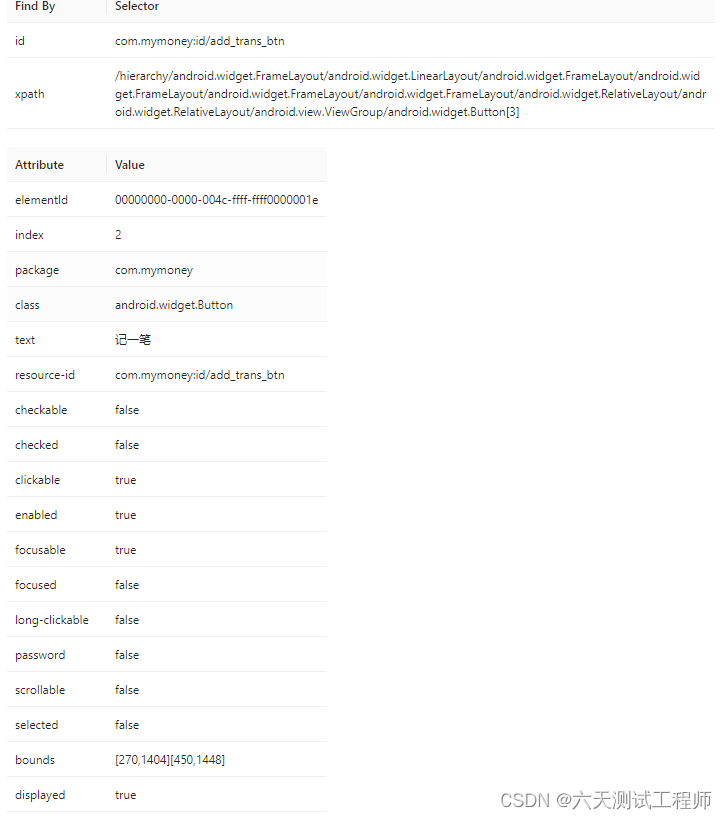
通过ID定位,如下图id和resource-id的值都可以

我们通过Search For Element看是否可以定位到元素

如下图,表示定位到一个唯一的元素了,可以直接用

'''
定位到按钮“记一笔”
'''
from appium import webdriver
from appium.webdriver.common.appiumby import AppiumBy
import time
# For W3C actions
from selenium.webdriver.common.action_chains import ActionChains
from selenium.webdriver.common.actions import interaction
from selenium.webdriver.common.actions.action_builder import ActionBuilder
from selenium.webdriver.common.actions.pointer_input import PointerInput

caps = {}
caps["platformName"] = "Android"
caps["appium:platfformVersion"] = "11"
caps["appium:deviceName"] = "OFYDHUCIPN8PHEBI"
caps["appium:appPackage"] = "com.mymoney"
caps["appium:appActivity"] = "com.mymoney.biz.main.v12.MainActivityV12"
caps["appium:noReset"] = True
caps["appium:noSign"] = True
caps["appium:unicodeKeyboard"] = True
caps["appium:resetKeyboard"] = True
caps["appium:ensureWebviewsHavePages"] = True
caps["appium:nativeWebScreenshot"] = True
caps["appium:newCommandTimeout"] = 3600
caps["appium:connectHardwareKeyboard"] = True


driver = webdriver.Remote("http://127.0.0.1:4723/wd/hub", caps)
#以上代码都是直接从Appium Inspector的Session Information复制的

#定位“记一笔”按钮
add_trans_btn = driver.find_element(AppiumBy.ID,"com.mymoney:id/add_trans_btn")
#打印该按钮的文本
print(add_trans_btn.text)
#退出
driver.quit()
运行结果为,说明我们成功定位到该元素了
[Running] python -u "d:\Test\Android_Test\app_connect.py"
记一笔

[Done] exited with code=0 in 13.287 seconds
2 通过xpath定位find_elements(by.XPATH,value)
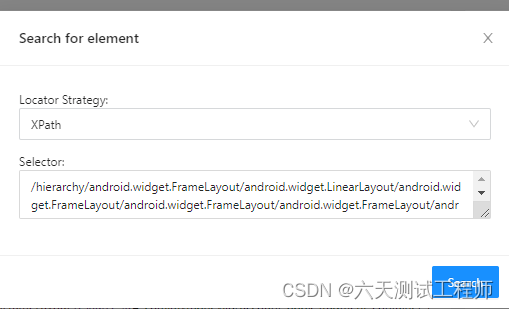
xpath就是如下这一长段了,复制后同样通过Search For Element查找
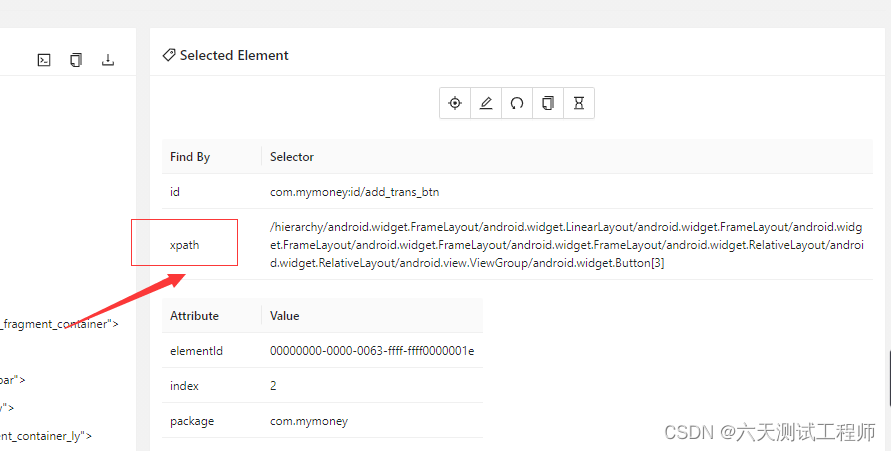
查找结果
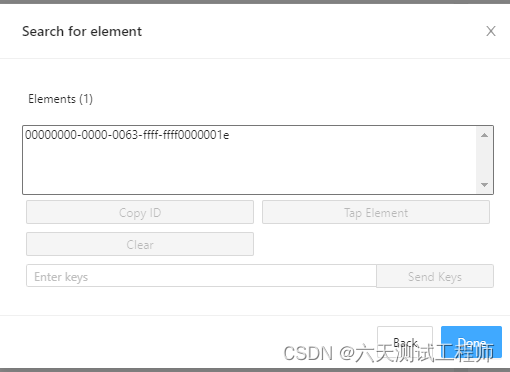
可以唯一定位到
代码如下
'''
通过xpath定位到元素,并打印文本
'''
from appium import webdriver
from appium.webdriver.common.appiumby import AppiumBy
import time
# For W3C actions
from selenium.webdriver.common.action_chains import ActionChains
from selenium.webdriver.common.actions import interaction
from selenium.webdriver.common.actions.action_builder import ActionBuilder
from selenium.webdriver.common.actions.pointer_input import PointerInput

caps = {}
caps["platformName"] = "Android"
caps["appium:platfformVersion"] = "11"
caps["appium:deviceName"] = "OFYDHUCIPN8PHEBI"
caps["appium:appPackage"] = "com.mymoney"
caps["appium:appActivity"] = "com.mymoney.biz.main.v12.MainActivityV12"
caps["appium:noReset"] = True
caps["appium:noSign"] = True
caps["appium:unicodeKeyboard"] = True
caps["appium:resetKeyboard"] = True
caps["appium:ensureWebviewsHavePages"] = True
caps["appium:nativeWebScreenshot"] = True
caps["appium:newCommandTimeout"] = 3600
caps["appium:connectHardwareKeyboard"] = True

driver = webdriver.Remote("http://127.0.0.1:4723/wd/hub", caps)
#以上代码从Session Information复制,直接使用

#通过Xpath定位元素
add_trans_btn = driver.find_element(AppiumBy.XPATH,"/hierarchy/android.widget.FrameLayout/android.widget.LinearLayout/android.widget.FrameLayout/android.widget.FrameLayout/android.widget.FrameLayout/android.widget.FrameLayout/android.widget.RelativeLayout/android.widget.RelativeLayout/android.view.ViewGroup/android.widget.Button[3]")
#打印文本
print(add_trans_btn.text)
#退出
driver.quit()
运行结果如下,表示定位成功
[Running] python -u "d:\Test\Android_Test\find_element_test.py"
记一笔

[Done] exited with code=0 in 16.262 seconds
3通过class name定位,find_element(By.CLASS_NAME,value)
ClasseName对应Appium Inspector的class
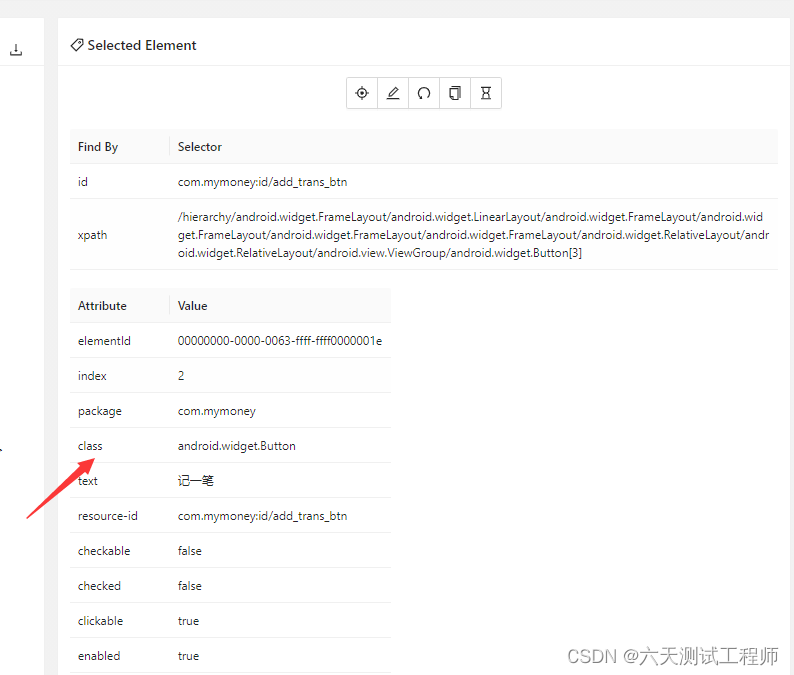
还是一样的,我们Search一下
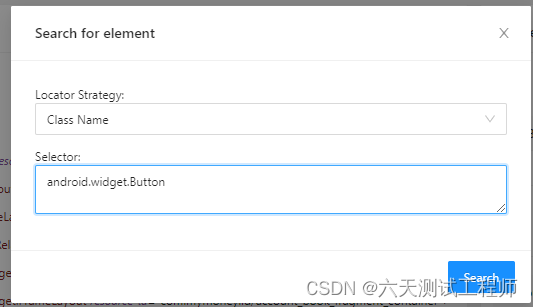
如下图,该页面用这个Class有10个元素,我们先用
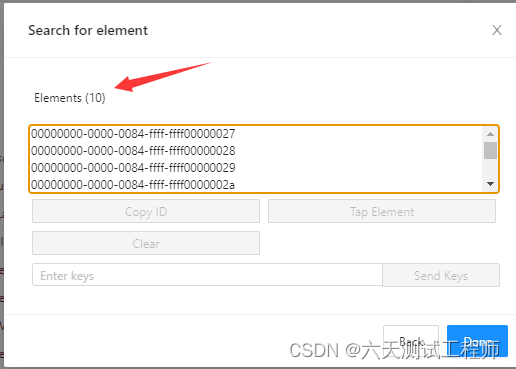
我们也用find_element(BY.ClaseName,value)试试,看看运行结果
前面的代码跟上面一样,我们只输出对应的代码
#通过CLASS_NAME定位元素,并打印出该元素的文本
d_trans_btn_class = driver.find_element(AppiumBy.CLASS_NAME,"android.widget.Button")
#打印文本
print(add_trans_btn_class.text)
#退出
driver.quit()
运行结果为
[Running] python -u "d:\Test\Android_Test\find_element_test.py"
预算

[Done] exited with code=0 in 14.633 seconds
所以这种情况就不能直接用find_element(BY.ClaseName,value),我们可以用find_elements(BY.ClaseName,value)找出所有的元素,然后匹配我们需要文本
find_elements代码段
#通过CLASS_NAME定位
add_trans_btn_class = driver.find_elements(AppiumBy.CLASS_NAME,"android.widget.Button")
#打印所有定位到元素的文本
for element in add_trans_btn_class:
    print(element.text)
#退出
driver.quit()
运行结果
[Running] python -u "d:\Test\Android_Test\find_element_test.py"
预算
图表
模板
社区
服务
账户
流水
记一笔
项目
设置

[Done] exited with code=0 in 15.197 seconds
所以用find_elements是可以的,通过text匹配就能准确定位到元素了,不过也没必要这样用,直接用id或xpath就行了
4通过ACCESSIBILITY_ID定位,find_element(By.ACCESSIBILITY_ID,value)
ACCESSIBILITY_ID好多应用没有了,如果是Android系统,通过uiautomatorviewer定位,对应的是content-desc属性,我们可以看到该属性的值为空,所以不能用
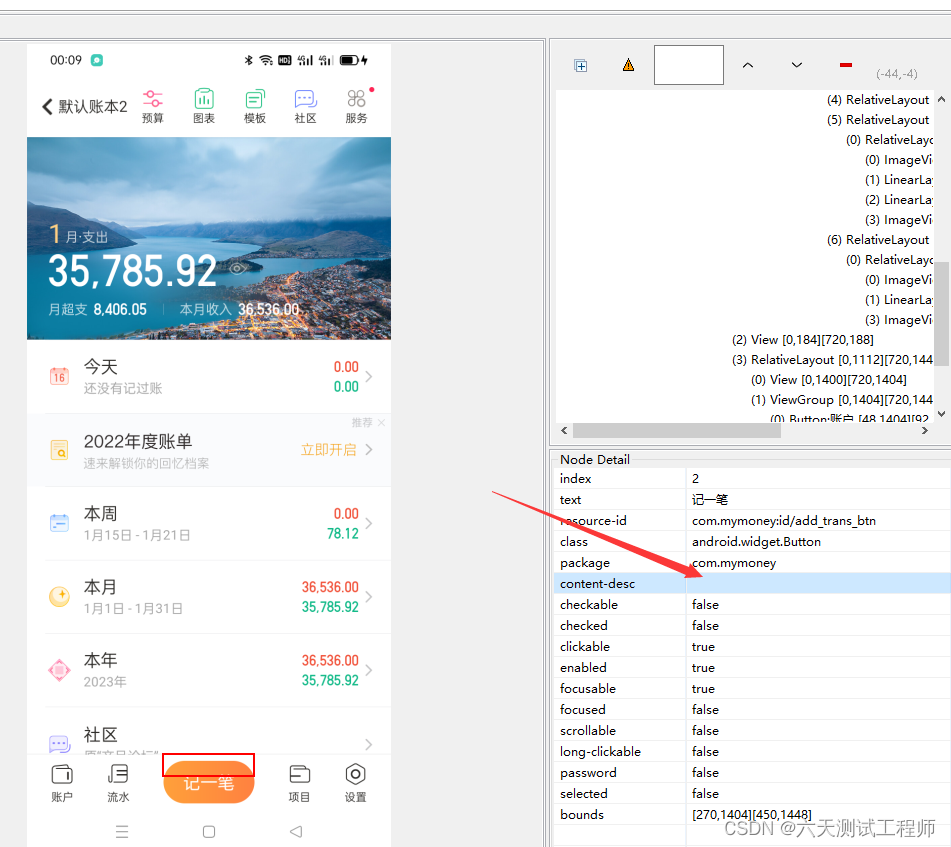
而在Appium Inspector中对应是accessibility_id指的是accessibility id属性或name属性或label属性,可以看到我们的应用里面都没有这些属性,所以By.ACCESSIBILITY_ID无法用

北京人形旗下天工造物具身智能开源社区,聚焦具身天工与慧思开物两大平台
更多推荐
 3
3 0
0- 0


 已为社区贡献6条内容

所有评论(0)