树莓派的系统安装及分辨率设置
·
树莓派系统安装
1.下载树莓派镜像文件
进入树莓派官网下载镜像,网址http://www.raspberrypi.org/downloads/,选择
RASPBIAN JESSIE LITE点击DOWNLOAD zip进行下载。
RASPBIAN JESSIE LITE点击DOWNLOAD zip进行下载。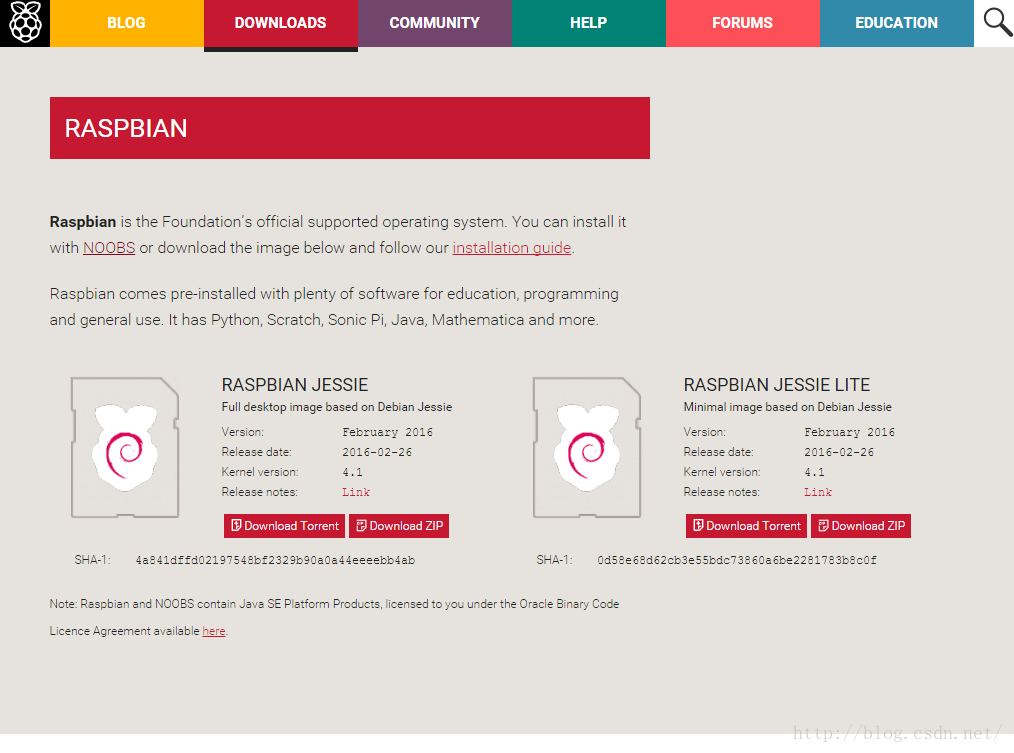
2.工具准备
(1)硬件:树莓派及电源线,SD卡(大于2G),SD卡读卡器,HDMI转VGA线,显示器(本人准备HP1280*1024分辨率显示器)
(2)软件:Win32 DiskI mager,sdformatter。
3.镜像烧写
(1)将下载的ZIP文件解压成为img格式,把SD卡插入读卡器并插入电脑USB,运行WIN32 DISKI MAGER点击文件夹选项选择解压的镜像,Device为选择SD卡的卷标,点击write进行写入镜像。

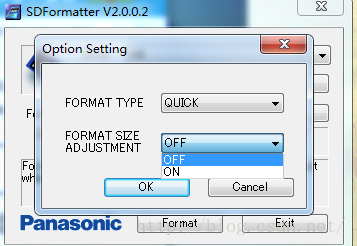
(2)如果写入失败,请下载SD卡低级格式化工具SDFORMATTER进行SD卡格式化,windows下的格式化属于高级格式化,打开后选择卷标后,点击option进行配置foamat size ADjustment为ON。点击fomat进行格式化。
4分辨率设置
如果此时将SD卡插入树莓派上电启动,显示器将不会亮屏。必须在windows下进入Sd卡根目录config。
以下为config.txt在1280*1024分辨率下的正确配置方式
# For more options and information see
# http://www.raspberrypi.org/documentation/configuration/config-txt.md
# Some settings may impact device functionality. See link above for details
# uncomment if you get no picture on HDMI for a default "safe" mode
#hdmi_safe=1
# uncomment this if your display has a black border of unused pixels visible
# and your display can output without overscan
#disable_overscan=1
# uncomment the following to adjust overscan. Use positive numbers if console
# goes off screen, and negative if there is too much border
overscan_left=16
overscan_right=16
overscan_top=16
overscan_bottom=16
# uncomment to force a console size. By default it will be display's size minus
# overscan.
framebuffer_width=1280
framebuffer_height=1024
# uncomment if hdmi display is not detected and composite is being output
hdmi_force_hotplug=1
# uncomment to force a specific HDMI mode (this will force VGA)
hdmi_group=2
hdmi_mode=35
# uncomment to force a HDMI mode rather than DVI. This can make audio work in
# DMT (computer monitor) modes
hdmi_drive=2
# uncomment to increase signal to HDMI, if you have interference, blanking, or
#no display
config_hdmi_boost=4
# uncomment for composite PAL
#sdtv_mode=2
#uncomment to overclock the arm. 700 MHz is the default.
arm_freq=800
# Uncomment some or all of these to enable the optional hardware interfaces
dtparam=i2c_arm=on
dtparam=i2s=on
dtparam=spi=on
# Uncomment this to enable the lirc-rpi module
#dtoverlay=lirc-rpi
# Additional overlays and parameters are documented /boot/overlays/README
# Enable audio (loads snd_bcm2835)
dtparam=audio=on
此时保存config.txt,将SD卡插入树莓派进行上电启动,此时树莓派屏幕亮起,启动正常。
以上即为树莓派系统的安装过程。

北京人形旗下天工造物具身智能开源社区,聚焦具身天工与慧思开物两大平台
更多推荐
 4
 0
- 0


 已为社区贡献5条内容

所有评论(0)