基于 Selenium 的食物营养 营养数据爬虫 爬取方法实践
一、背景与需求
在营养分析相关工作中,需获取食物营养数据库信息。目标网站食物数据分散在分类页面及详情页,需通过爬虫技术自动采集,包括食物类别、名称、热量及各类营养成分,最终保存为结构化文本数据。
二、问题发现与分析
(一)初始爬取困境
使用 Selenium 尝试爬取时,出现 “未找到食物列表元素” 错误。经浏览器开发者工具排查,发现页面结构与代码中预设的元素定位表达式不匹配,原假设的 food - list - item 等类名在实际页面不存在,需重新分析页面结构。
(二)页面结构探索
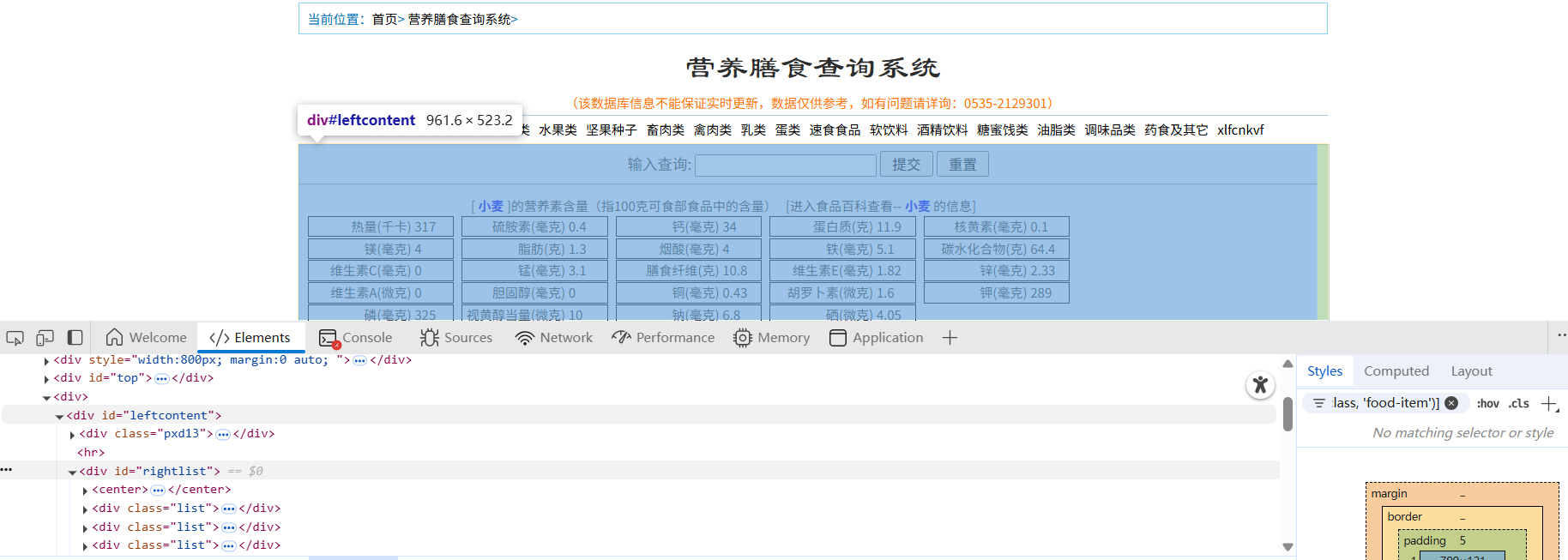
通过浏览器开发者工具,逐步梳理出网站结构:分类导航页(如 “谷类”“薯类” 等入口 )→ 分类列表页(包含具体食物链接,以 <li class="lie"> 标签承载 )→ 食物详情页(呈现热量、蛋白质等营养数据,以 <div class="list"> 标签组织 )。
三、解决方法与实现
(一)工具与环境准备
使用 Python 语言,依托 Selenium 库模拟浏览器操作,结合 webdriver_manager 管理浏览器驱动(以 Edge 浏览器为例 ),利用 os 库创建数据存储目录,实现自动化爬取流程。
(二)关键步骤实现
- 1.浏览器配置与初始化
配置 Edge 浏览器选项,禁用自动化特征检测、设置 User - Agent 伪装,启动浏览器并打开目标网站。代码如下:
def setup_edge_browser():
    edge_options = Options()
    edge_options.add_argument("--disable-blink-features=AutomationControlled")
    edge_options.add_argument(
        f"user-agent=Mozilla/5.0 (Windows NT 10.0; Win64; x64) AppleWebKit/537.36 (KHTML, like Gecko) Chrome/{random.randint(110, 119)}.0.0.0 Safari/537.36 Edg/{random.randint(110, 119)}.0.0.0")
    edge_options.add_experimental_option("excludeSwitches", ["enable-automation"])
    edge_options.add_experimental_option("useAutomationExtension", False)
    service = Service(EdgeChromiumDriverManager().install())
    driver = webdriver.Edge(service=service, options=edge_options)
    return driver
- 2.分类页面导航
定位并点击分类链接(如 “谷类” ),进入对应分类列表页,通过显式等待确保元素可交互。核心代码片段:category_links = WebDriverWait(driver, 15).until( EC.presence_of_all_elements_located((By.XPATH, f"//a[contains(text(), '{category}')]")) ) valid_links = [link for link in category_links if link.is_displayed() and link.is_enabled()] category_link = valid_links[0] driver.execute_script("arguments[0].scrollIntoView();", category_link) category_link.click() -
3.食物列表提取 在分类列表页,依据实际结构(
#dibu .lie > a)定位食物链接,获取食物名称与详情页 URL。关键代码: -
food_links = WebDriverWait(driver, 10).until(
    EC.presence_of_all_elements_located((By.CSS_SELECTOR, "#dibu .lie > a"))
)
4.详情页数据解析
进入食物详情页,提取热量、蛋白质等营养数据,处理不同页面结构的异常情况。解析函数如下:def parse_nutrition_details(driver): nutrition_data = {} try: nutrient_items = driver.find_elements(By.CSS_SELECTOR, "#rightlist .list") for item in nutrient_items: name_element = item.find_element(By.CSS_SELECTOR, ".list_m") nutrient_name = name_element.text.strip() nutrient_value = item.text.replace(nutrient_name, "").strip() nutrition_data[nutrient_name] = nutrient_value except Exception as e: print(f"解析详情页出错: {repr(e)}") return nutrition_data -
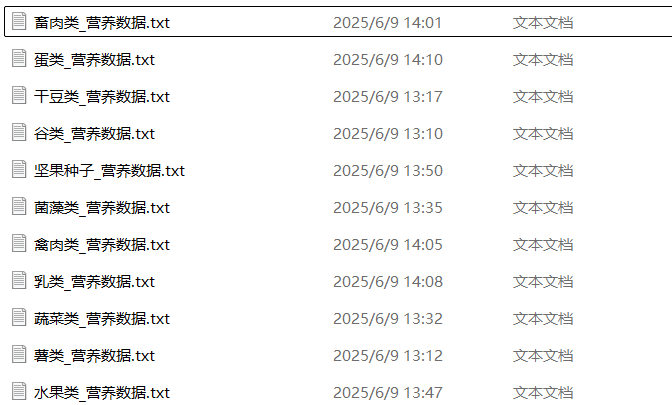
5.数据保存 将爬取的食物名称、营养数据等信息,按分类保存为文本文件,便于后续分析。代码示例:
file_path = f"food_nutrition_text_data/{category}_营养数据.txt"
with open(file_path, "a", encoding="utf-8") as file:
    file.write(f"## {food_name}\n")
    for nutrient, value in nutrition_data.items():
        file.write(f"- {nutrient}: {value}\n")
四、调试代码及其展示
import time
import random
import os
from selenium import webdriver
from selenium.webdriver.edge.service import Service
from selenium.webdriver.common.by import By
from selenium.webdriver.edge.options import Options
from selenium.webdriver.support.ui import WebDriverWait
from selenium.webdriver.support import expected_conditions as EC
from webdriver_manager.microsoft import EdgeChromiumDriverManager
from selenium.common.exceptions import TimeoutException, NoSuchElementException
# 目标URL(分类列表页)
base_url = "http://db.foodmate.net/yingyang/"
# 定义食物类别列表(前十一种)
food_categories = [
    "谷类", "薯类", "干豆类", "蔬菜类", "菌藻类",
    "水果类", "坚果种子", "畜肉类", "禽肉类", "乳类", "蛋类"
]
# 创建保存数据的目录
if not os.path.exists("food_nutrition_text_data"):
    os.makedirs("food_nutrition_text_data")
def setup_edge_browser():
    """配置并启动Edge浏览器"""
    edge_options = Options()
    edge_options.add_argument("--disable-blink-features=AutomationControlled")
    edge_options.add_argument(
        f"user-agent=Mozilla/5.0 (Windows NT 10.0; Win64; x64) AppleWebKit/537.36 (KHTML, like Gecko) Chrome/{random.randint(110, 119)}.0.0.0 Safari/537.36 Edg/{random.randint(110, 119)}.0.0.0")
    edge_options.add_experimental_option("excludeSwitches", ["enable-automation"])
    edge_options.add_experimental_option("useAutomationExtension", False)
    # 若浏览器安装路径特殊,取消注释并指定
    # edge_options.binary_location = r"C:\Program Files (x86)\Microsoft\Edge\Application\msedge.exe"

    service = Service(EdgeChromiumDriverManager().install())
    driver = webdriver.Edge(service=service, options=edge_options)
    return driver


def parse_nutrition_details(driver):
    """解析详情页的营养成分(针对当前页面结构)"""
    nutrition_data = {}
    try:
        # 找到所有营养指标项(div class="list")
        nutrient_items = driver.find_elements(By.CSS_SELECTOR, "#rightlist .list")
        for item in nutrient_items:
            try:
                # 提取营养指标名称和值
                name_element = item.find_element(By.CSS_SELECTOR, ".list_m")
                nutrient_name = name_element.text.strip()
                nutrient_value = item.text.replace(nutrient_name, "").strip()
                nutrition_data[nutrient_name] = nutrient_value
            except NoSuchElementException:
                continue
    except Exception as e:
        print(f"解析详情页出错: {repr(e)}")
    return nutrition_data


def crawl_food_data():
    """爬取流程:列表页 → 详情页 → 保存数据"""
    driver = setup_edge_browser()
    try:
        print(f"正在打开食物营养数据库: {base_url}")
        driver.get(base_url)
        driver.maximize_window()
        time.sleep(5)

        for category in food_categories:
            print(f"\n===== 开始爬取【{category}】食物数据 =====")
            try:
                # 1. 点击分类链接,进入列表页
                category_links = WebDriverWait(driver, 15).until(
                    EC.presence_of_all_elements_located((By.XPATH, f"//a[contains(text(), '{category}')]"))
                )
                valid_links = [link for link in category_links if link.is_displayed() and link.is_enabled()]
                if not valid_links:
                    print(f"警告: 未找到【{category}】有效链接,跳过")
                    continue

                category_link = valid_links[0]
                driver.execute_script("arguments[0].scrollIntoView();", category_link)
                time.sleep(2)
                category_link.click()
                print(f"已进入【{category}】列表页,等待加载...")
                time.sleep(random.uniform(3, 6))

                # 2. 提取列表页的食物链接(适配当前结构:li.lie > a)
                try:
                    food_links = WebDriverWait(driver, 10).until(
                        EC.presence_of_all_elements_located((By.CSS_SELECTOR, "#dibu .lie > a"))
                    )
                    if not food_links:
                        print(f"错误: 【{category}】列表页未找到食物链接,跳过")
                        driver.get(base_url)
                        time.sleep(3)
                        continue
                except TimeoutException:
                    print(f"错误: 【{category}】列表页加载超时,跳过")
                    driver.get(base_url)
                    time.sleep(3)
                    continue

                print(f"找到 {len(food_links)} 个食物链接,开始解析详情页...")

                # 3. 遍历食物链接,进入详情页爬取
                for i, food_link in enumerate(food_links, 1):
                    try:
                        food_name = food_link.text.strip()
                        food_url = food_link.get_attribute("href")
                        print(f"  正在处理 {i}. {food_name} → {food_url}")

                        # 打开详情页(新标签页)
                        driver.execute_script("window.open(arguments[0]);", food_url)
                        driver.switch_to.window(driver.window_handles[-1])
                        time.sleep(random.uniform(3, 5))

                        # 4. 解析详情页营养数据
                        nutrition_data = parse_nutrition_details(driver)

                        # 5. 保存数据到文本
                        file_path = f"food_nutrition_text_data/{category}_营养数据.txt"
                        with open(file_path, "a", encoding="utf-8") as file:
                            file.write(f"## {food_name}\n")
                            for nutrient, value in nutrition_data.items():
                                file.write(f"- {nutrient}: {value}\n")
                            file.write("\n" + "-" * 50 + "\n\n")

                        # 关闭详情页,回到列表页
                        driver.close()
                        driver.switch_to.window(driver.window_handles[0])

                    except Exception as e:
                        print(f"  处理 {food_name} 时出错: {repr(e)}")
                        # 关闭异常标签页
                        if len(driver.window_handles) > 1:
                            driver.close()
                            driver.switch_to.window(driver.window_handles[0])
                        continue

                # 返回首页
                driver.get(base_url)
                time.sleep(3)

            except Exception as e:
                print(f"爬取【{category}】类别时出错: {repr(e)}")
                try:
                    driver.get(base_url)
                    time.sleep(5)
                except:
                    pass

        print("\n🎉 所有食物类别数据爬取完成!")

    except Exception as e:
        print(f"爬取过程中发生严重错误: {repr(e)}")
    finally:
        driver.quit()


if __name__ == "__main__":
    crawl_food_data()
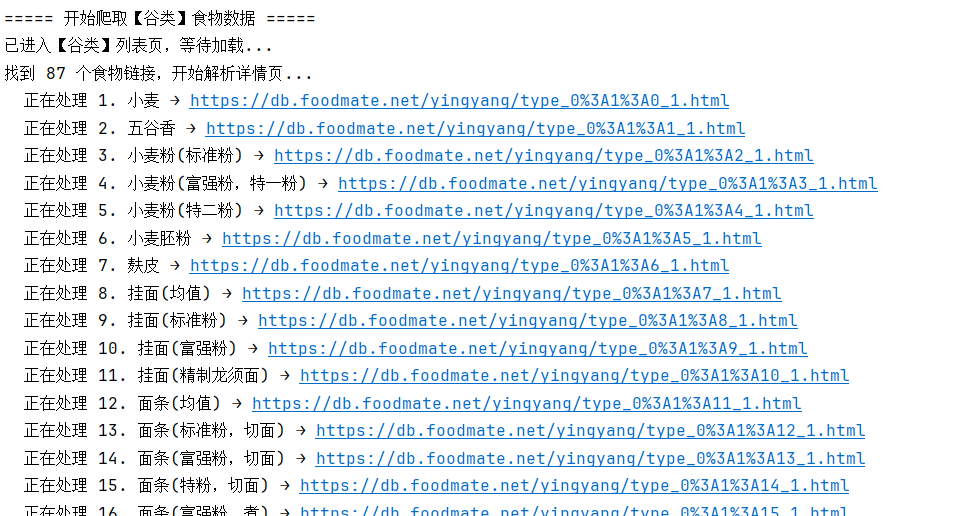
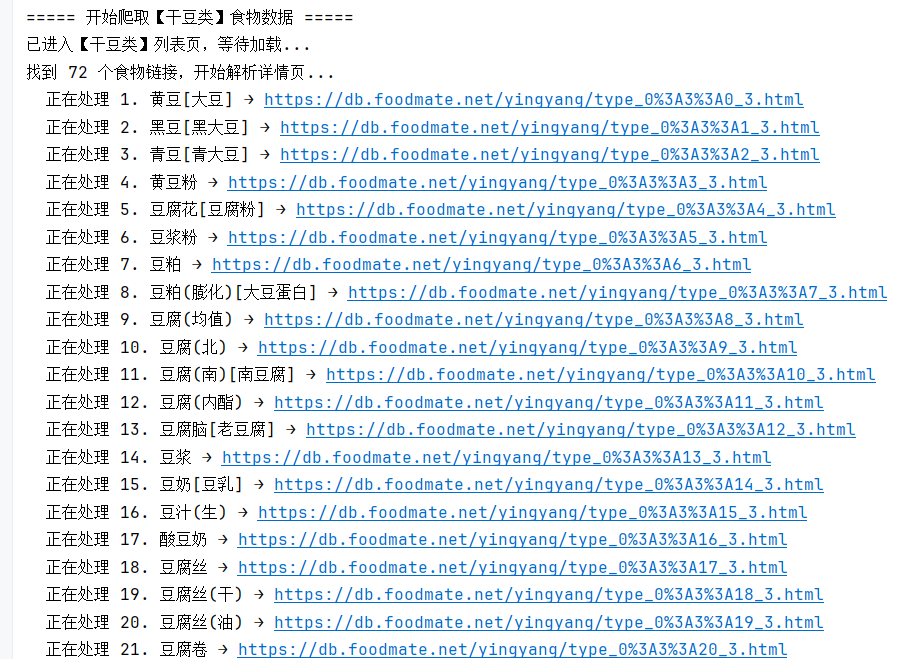
等等
五、总结与展望
通过分析网站结构、调整元素定位策略、优化异常处理,成功实现食物营养数据的自动化爬取。该方法可扩展至其他类似结构网站的数据采集,后续可结合数据分析库(如 Pandas ),对爬取的营养数据进行深度挖掘,为膳食分析、营养推荐等应用提供数据支撑 。

北京人形旗下天工造物具身智能开源社区,聚焦具身天工与慧思开物两大平台
更多推荐
 54
54 0
0- 0


 已为社区贡献1条内容

所有评论(0)