微信小程序实现定位(小白专用)
·
微信小程序实现定位
需要引入腾讯地图的api
创建libs文件夹引入地图js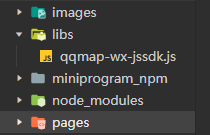
在需要定位的页面写js
//引入地图
var QQMapWX = require('../../libs/qqmap-wx-jssdk.js');
var qqmapsdk;
Page({

    onLoad: function () {
        // 实例化API核心类
        qqmapsdk = new QQMapWX({
            key: '申请的key'
        });
    },
    onShow: function () {
        // 调用接口
        qqmapsdk.search({
            keyword: '口袋机',
            success: function (res) {
                console.log(res);
            },
            fail: function (res) {
                console.log(res);
            },
        complete: function (res) {
            console.log(res);
        }
    });


})
重点核心代码
// 判断用户是否拒绝地理位置信息授权,拒绝的话重新请求授权
    getUserLocation: function () {
      let that = this;
      wx.getSetting({
        success: (res) => {
          console.log(JSON.stringify(res))
          // res.authSetting['scope.userLocation'] == undefined    表示 初始化进入该页面
          // res.authSetting['scope.userLocation'] == false    表示 非初始化进入该页面,且未授权
          // res.authSetting['scope.userLocation'] == true    表示 地理位置授权
          if (res.authSetting['scope.userLocation'] != undefined && res.authSetting['scope.userLocation'] != true) {
            wx.showModal({
              title: '请求授权当前位置',
              content: '需要获取您的地理位置,请确认授权',
              success: function (res) {
                if (res.cancel) {
                  wx.showToast({
                    title: '拒绝授权',
                    icon: 'none',
                    duration: 1000
                  })
                } else if (res.confirm) {
                  wx.openSetting({
                    success: function (dataAu) {
                      if (dataAu.authSetting["scope.userLocation"] == true) {
                        wx.showToast({
                          title: '授权成功',
                          icon: 'success',
                          duration: 1000
                        })
                        //再次授权,调用wx.getLocation的API
                        that.getLocation();
                      } else {
                        wx.showToast({
                          title: '授权失败',
                          icon: 'none',
                          duration: 1000
                        })
                      }
                    }
                  })
                }
              }
            })
          } else if (res.authSetting['scope.userLocation'] == undefined) {
            //调用wx.getLocation的API
            that.getLocation();
          }
          else {
            //调用wx.getLocation的API
            that.getLocation();
          }
        }
      })
    },
    // 获取定位当前位置的经纬度
    getLocation: function () {
      let that = this;
      wx.getLocation({
        type: 'wgs84',
        success: function (res) {
          // console.log('res2', res)
          let latitude = res.latitude
          let longitude = res.longitude
          app.globalData.lat = res.latitude;
          app.globalData.lng = res.longitude; //把onload定位时候的经纬度存到全局
          let speed = res.speed
          let accuracy = res.accuracy;
          that.getLocal(latitude, longitude)
        },
        fail: function (res) {
          console.log('fail' + JSON.stringify(res))
        }
      })
    },
    // 获取当前地理位置
    getLocal: function (latitude, longitude) {
      let that = this;
      qqmapsdk.reverseGeocoder({
        location: {
          latitude: latitude,
          longitude: longitude
        },
        success: function (res) {
          // console.log('res3', res)
          // 保存一下当前定位的位置留着后面重新定位的时候搜索附近地址用
          // app.globalData.currentLocation = district;
          that.setData({
            address: res.result.address,
            district: res.result.ad_info.district,
            street: res.result.address_component.street,
            rough: res.result.formatted_addresses.rough
          })
        },
        fail: function (res) {
          console.log(res);
        },
        complete: function (res) {
          // console.log(res);
        }
      });
    },
data保存地理位置信息
 data: {
    address: '',
    district: '',
    street: '',
    rough: ''
  },
html数据绑定
<view class="head">
    <image src="../../images/dizhi.png"></image>
    <text class="color">{{district}}</text>
    <text class="color">{{street}}</text>
    <text class="color">{{rough}}</text>
  </view>
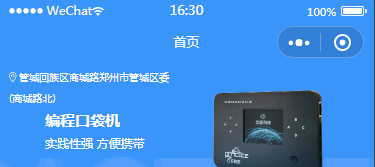
效果展示

北京人形旗下天工造物具身智能开源社区,聚焦具身天工与慧思开物两大平台
更多推荐
 8
8 0
0- 0


 已为社区贡献1条内容

所有评论(0)