影刀RPA 元素定位进阶:XPath从入门到精通
影刀RPA 元素定位进阶:XPath从入门到精通
作者:林焱
什么情况用
CSS选择器能搞定大部分元素定位,但有些场景CSS选择器无能为力:你需要找"某个元素的父元素"、你需要根据文本内容定位元素、你需要找"第3个之后的所有元素"、你需要跨层级条件定位。
这些场景就得用XPath。XPath是比CSS选择器更强大的元素定位语言,支持文本匹配、父级查找、轴定位等高级功能。影刀RPA的元素定位同时支持CSS选择器和XPath,掌握XPath能解决更复杂的定位问题。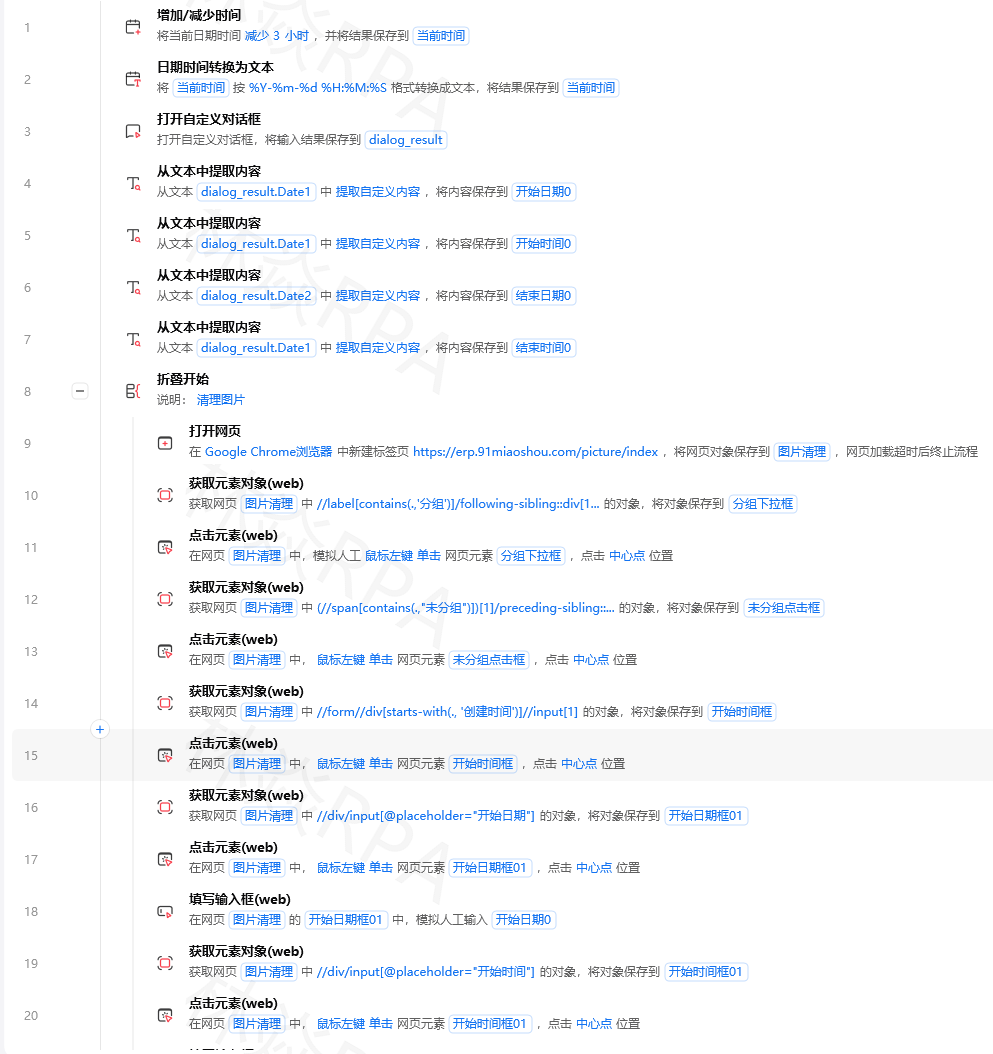
本文讲清楚:XPath的基本语法、和CSS选择器的对比、在影刀RPA中的实战用法、怎么写出可维护的XPath。
怎么做
一、XPath vs CSS选择器对比
| 能力 | CSS选择器 | XPath |
|---|---|---|
| 标签/类/ID定位 | ✅ | ✅ |
| 属性匹配 | ✅ | ✅ |
| 文本内容匹配 | ❌ | ✅ |
| 查找父元素 | ❌ | ✅ |
| 查找兄弟元素 | 有限 | ✅ |
| 跨层级查找 | ✅(后代) | ✅(更灵活) |
| 条件组合 | 有限 | ✅(and/or) |
| 位置定位 | nth-child | ✅(更灵活) |
| 学习难度 | 低 | 中 |
选择建议:简单定位用CSS选择器,复杂定位用XPath。两者不冲突,可以混用。
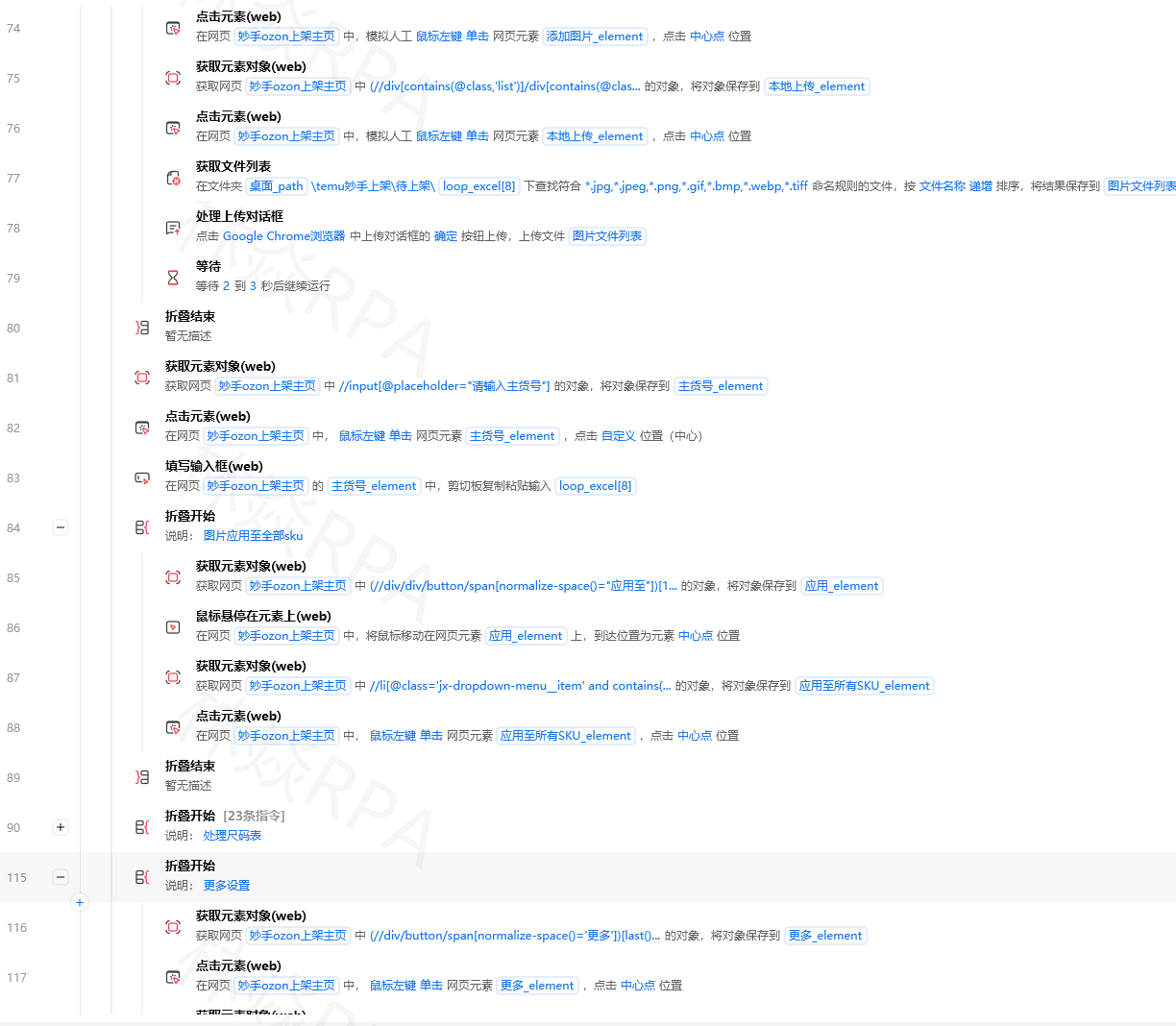
二、XPath基础语法
<!-- 基础路径 -->
/                         <!-- 根节点 -->
//                        <!-- 从任意位置开始查找 -->
/div                      <!-- 根节点的直接子元素div -->
//div                     <!-- 任意位置的div元素 -->
/div/ul/li                <!-- div > ul > li的路径 -->

<!-- 属性 -->
//input[@type="text"]     <!-- type为text的input -->
//div[@class="product"]   <!-- class为product的div -->
//a[@href]                <!-- 有href属性的a标签 -->
//input[@type!="hidden"]  <!-- type不为hidden的input -->

<!-- 文本匹配 -->
//a[text()="登录"]        <!-- 文本完全等于"登录"的a标签 -->
//a[contains(text(), "登")]  <!-- 文本包含"登"的a标签 -->
//div[contains(@class, "price")]  <!-- class包含"price"的div -->

<!-- 位置 -->
//li[1]                   <!-- 第1个li -->
//li[last()]              <!-- 最后一个li -->
//li[position() <= 3]     <!-- 前3个li -->
//li[position() > 2]      <!-- 第3个及之后的li -->
三、XPath高级用法
1. 轴定位(查找亲属元素)
拼多多店群自动化报活动上架!
<!-- 父元素 -->
//span[@class="price"]/parent::div      <!-- price的父元素div -->
//span[@class="price"]/..               <!-- 简写:price的父元素 -->

<!-- 兄弟元素 -->
//h3[@class="title"]/following-sibling::div  <!-- title之后的兄弟div -->
//div[@class="price"]/preceding-sibling::h3  <!-- price之前的兄弟h3 -->

<!-- 子元素 -->
//div[@class="card"]/child::span            <!-- card的直接子元素span(简写:/span) -->

<!-- 后代元素 -->
//div[@class="card"]/descendant::a          <!-- card内所有a标签(简写://a) -->

<!-- 后面的所有元素 -->
//h3[@class="title"]/following::div         <!-- title之后所有div -->

<!-- 前面的所有元素 -->
//div[@class="price"]/preceding::h3         <!-- price之前所有h3 -->
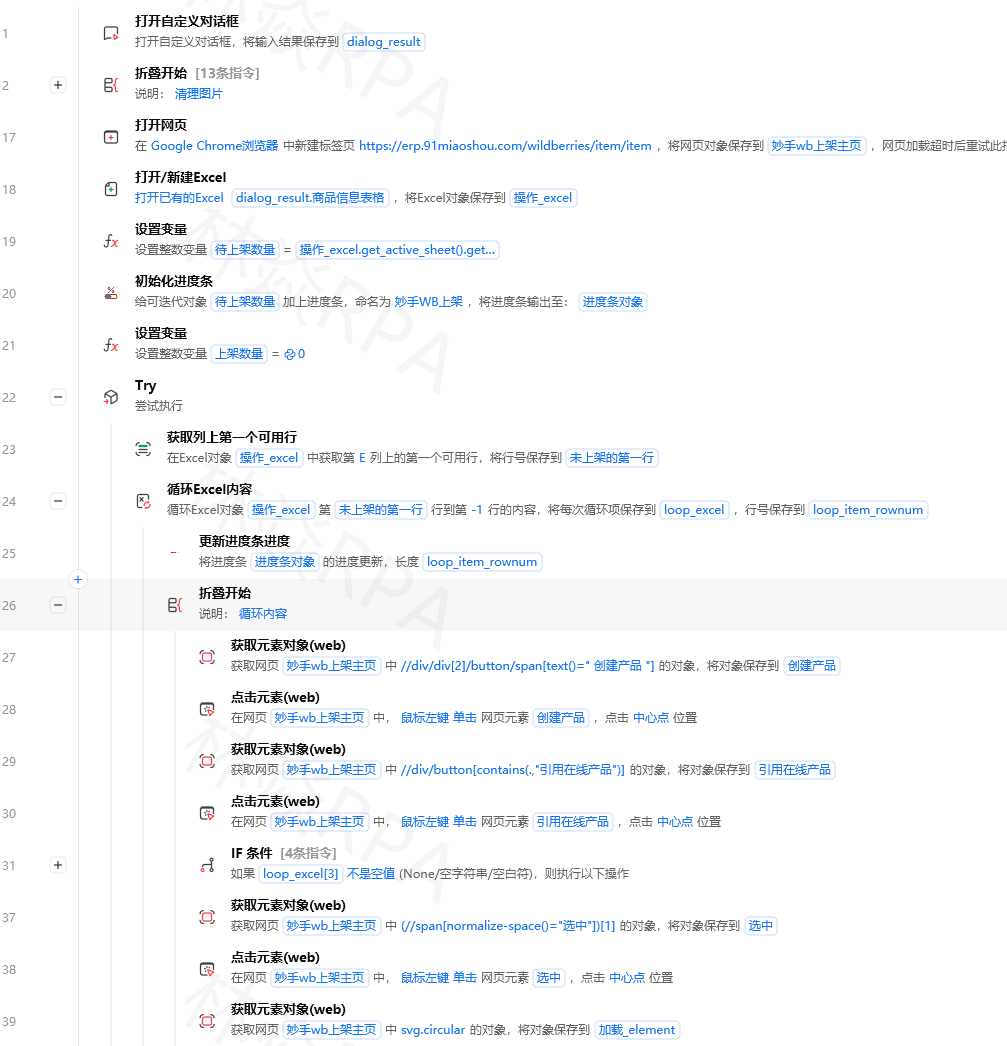
2. 多条件组合
<!-- and -->
//input[@type="text" and @name="keyword"]
<!-- type为text且name为keyword的input -->

<!-- or -->
//input[@type="text" or @type="search"]
<!-- type为text或search的input -->

<!-- not -->
//div[not(@class="hidden")]
<!-- class不为hidden的div -->

<!-- 组合 -->
//div[@class="product" and contains(text(), "手机") and not(contains(@class, "out-of-stock"))]
3. 函数
<!-- contains:包含 -->
//div[contains(@class, "active")]           <!-- class包含active -->
//a[contains(@href, "/product/")]           <!-- href包含/product/ -->
//span[contains(text(), "价格")]           <!-- 文本包含"价格" -->

<!-- starts-with:以...开头 -->
//a[starts-with(@href, "https")]           <!-- href以https开头 -->
//div[starts-with(@class, "product-")]     <!-- class以product-开头 -->

<!-- normalize-space:去除首尾空白 -->
//span[normalize-space(text())="价格"]     <!-- 文本(去空白后)等于"价格" -->

<!-- string-length:字符串长度 -->
//a[string-length(text()) > 0]             <!-- 有文本内容的a标签 -->

<!-- count:子元素数量 -->
//ul[count(li) > 5]                        <!-- 包含超过5个li的ul -->
四、RPA实战场景
场景1:通过文本定位按钮
<!-- CSS选择器做不到:通过按钮文字定位 -->
//button[text()="提交"]
//button[contains(text(), "保存")]
//a[contains(text(), "下一页")]
//td[contains(text(), "合计")]
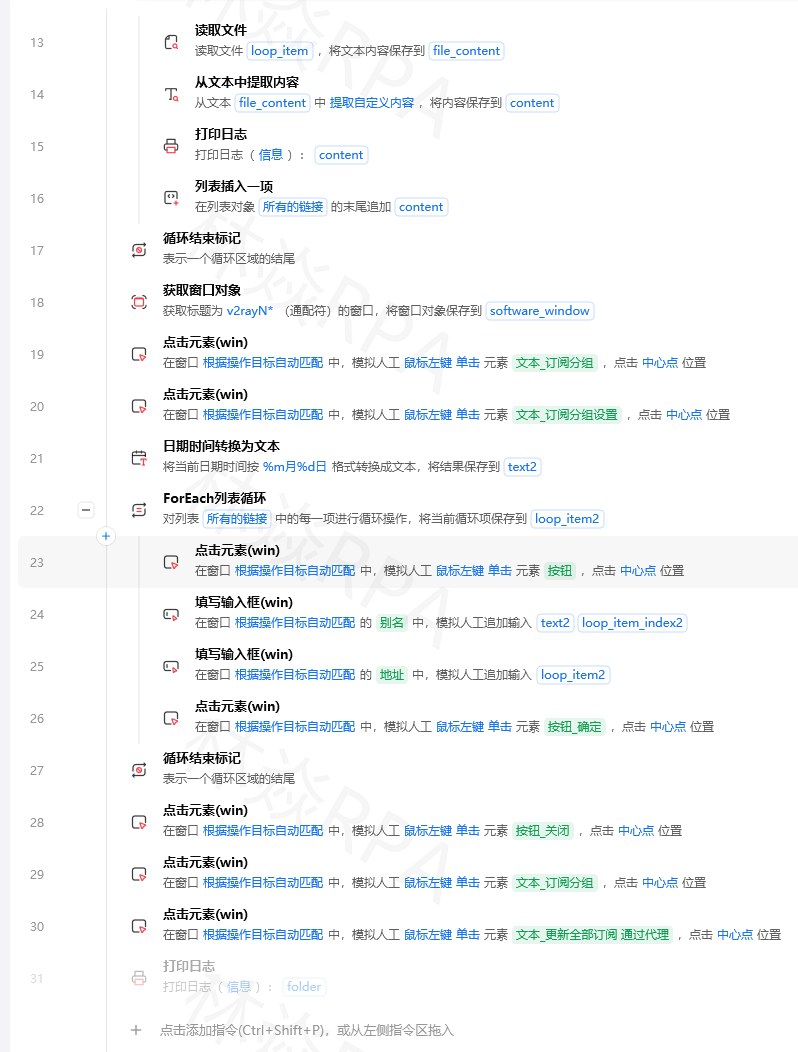
<!-- 影刀中操作:在元素定位器中切换到XPath模式,输入上述表达式 -->
场景2:根据子元素找父元素
# 场景:找到包含"特价"标签的商品卡片
# HTML结构:
# <div class="card">
#   <span class="tag">特价</span>
#   <h3>商品名称</h3>
#   <span class="price">¥99</span>
# </div>

# XPath:找到包含"特价"标签的卡片
xpath = '//div[@class="card" and .//span[@class="tag" and text()="特价"]]'

# 或者:从标签反查父元素
xpath = '//span[@class="tag" and text()="特价"]/ancestor::div[@class="card"]'
场景3:表格数据定位
# 场景:定位表格中某行某列的值
# HTML结构:
# <table>
#   <tr><th>商品名</th><th>价格</th><th>库存</th></tr>
#   <tr><td>商品A</td><td>¥128</td><td>50</td></tr>
#   <tr><td>商品B</td><td>¥99</td><td>0</td></tr>
# </table>

# 定位"商品B"所在行的价格
xpath = '//tr[td[contains(text(), "商品B")]]/td[2]'

# 定位库存为0的商品名
xpath = '//tr[td[3][normalize-space(text())="0"]]/td[1]'

# 定位表头为"价格"的那一列所有值
xpath = '//th[text()="价格"]/ancestor::table//tr[position()>1]/td[count(//th[text()="价格"]/preceding-sibling::th)+1]'
场景4:分页按钮定位
# 定位"下一页"按钮(多种写法)
xpath_list = [
    '//a[contains(text(), "下一页")]',
    '//a[contains(@class, "next")]',
    '//button[@aria-label="下一页"]',
    '//li[contains(@class, "next")]/a',
    '//a[@rel="next"]',
]

# 定位当前页码(有active类或aria-current属性)
xpath_current = '//li[contains(@class, "active") or @aria-current="page"]/a'

# 定位最后一页的页码
xpath_last = '//li[last()]/a'
场景5:动态加载元素定位
# 场景:商品列表是动态加载的,每个商品卡片有data-product-id属性
# 需要定位特定ID的商品

product_id = "P12345"
xpath = f'//div[@data-product-id="{product_id}"]'

# 在该商品卡片内定位价格
xpath_price = f'//div[@data-product-id="{product_id}"]//span[@class="price"]'

# 在该商品卡片内定位"加入购物车"按钮
xpath_button = f'//div[@data-product-id="{product_id}"]//button[contains(text(), "加入购物车")]'
五、XPath调试技巧
在浏览器F12的Console中测试XPath:
// 在浏览器控制台输入:
$x("//div[@class='product']")              // 返回匹配的元素数组
$x("//span[contains(text(), '价格')]")     // 测试文本匹配
$x("//div[@class='product']//span[@class='price']").length  // 匹配数量

// 检查XPath是否正确
$x("//a[contains(text(), '下一页')]").length  // 应该返回1
六、XPath优化原则
<!-- ❌ 全路径:太长太脆弱 -->
/html/body/div[2]/div[1]/ul/li[3]/div/span[2]
<!-- ✅ 从关键属性开始 -->
//div[@class="product-list"]//span[@class="price"]
<!-- ❌ 过度依赖位置 -->
//div/div/div/ul/li[5]/a
<!-- ✅ 用属性和文本 -->
//li[@data-id="12345"]//a
//a[contains(text(), "详情")]
<!-- ❌ 多层ancestor轴查询(性能差) -->
//span[@class="price"]/ancestor::div/ancestor::div/ancestor::div
<!-- ✅ 直接定位 -->
//div[@class="product-card"]//span[@class="price"]
有什么坑
坑1://和/的混淆
现象:/div和//div结果完全不同,但看起来差不多。
原因:/div是从根节点的直接子元素开始,//div是从任意位置开始。/是"直接子元素",//是"任意层级后代"。
解决:记住口诀——//是"不管在哪,找到就行",/是"必须是上一级的直接子元素"。大部分场景用//开头更灵活。
坑2:text()匹配空白字符问题
现象://a[text()="登录"]匹配不到,但页面上明明有"登录"两个字。
TEMU店群矩阵自动化运营核价报活动
原因:HTML中文本节点可能包含空白字符(换行、空格、缩进),text()="登录"要求完全相等,多一个空格就不匹配。
解决:用normalize-space()或contains():
//a[normalize-space(text())="登录"]      <!-- 去空白后匹配 -->
//a[contains(text(), "登录")]            <!-- 包含匹配 -->
坑3:XPath性能问题
现象:用//全局搜索的XPath在大型页面上很慢。
原因://会遍历整个DOM树,页面越大越慢。特别是嵌套使用//时,复杂度指数增长。
解决:先用一个稳定的锚点元素缩小范围,再在其内部查找:
<!-- ❌ 慢:两个全局搜索 -->
//div[@class="card"]//span[@class="price"]

<!-- ✅ 快:先定位table,再在table内找 -->
//table[@id="product-table"]//span[@class="price"]

<!-- ✅ 最快:用直接路径 -->
//table[@id="product-table"]/tbody/tr/td[2]/span
坑4:影刀中XPath和CSS选择器的切换
现象:在影刀元素定位器中写XPath,但验证不通过。切回CSS选择器又能用了。
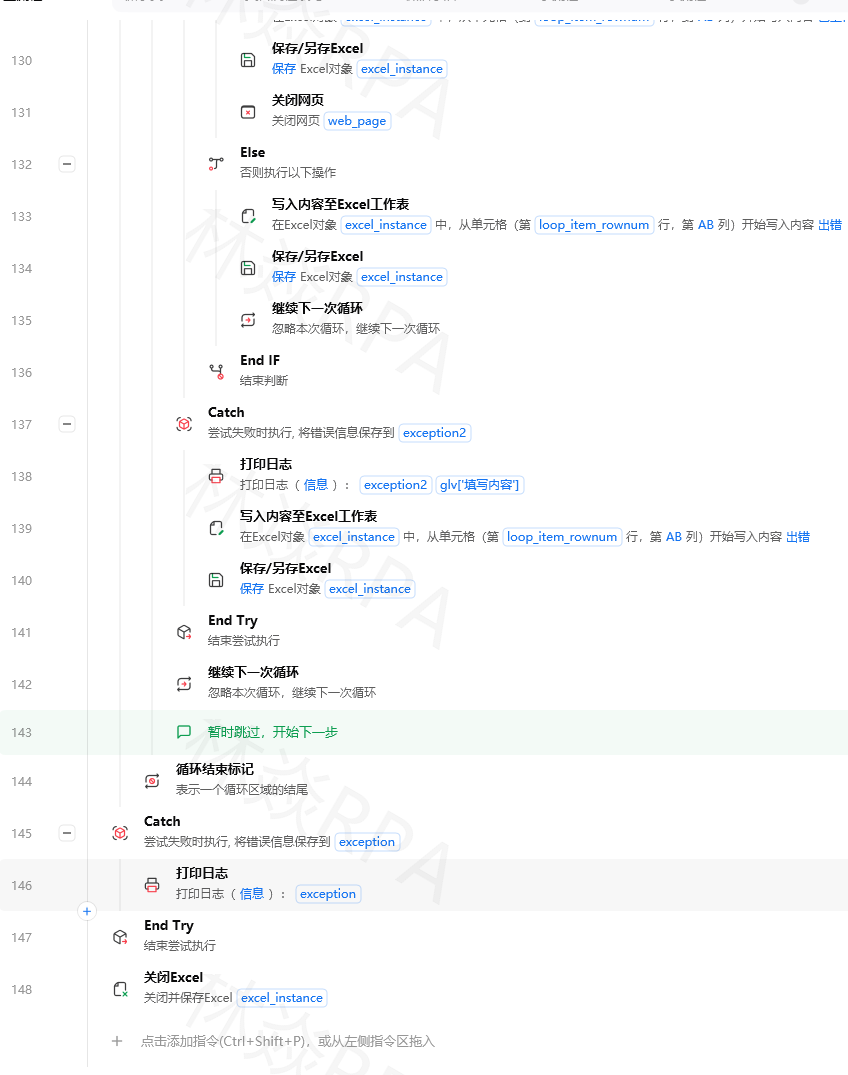
原因:影刀的元素定位器有CSS和XPath两种模式,确保你选对了模式。另外,影刀可能对XPath的语法支持有细微差异。
解决:在影刀的元素属性面板中明确选择"XPath"模式。如果XPath验证不通过,先在浏览器F12的$x()中测试,确认语法正确后再粘贴到影刀中。注意影刀可能不支持所有XPath函数。
坑5:动态class名导致XPath失效
现象://div[@class="product-card_active_3f2a"]能匹配,但下次运行就失效了。
原因:前端框架(如CSS Modules)会生成带哈希值的class名,每次构建都不同。
解决:用contains匹配class的稳定部分: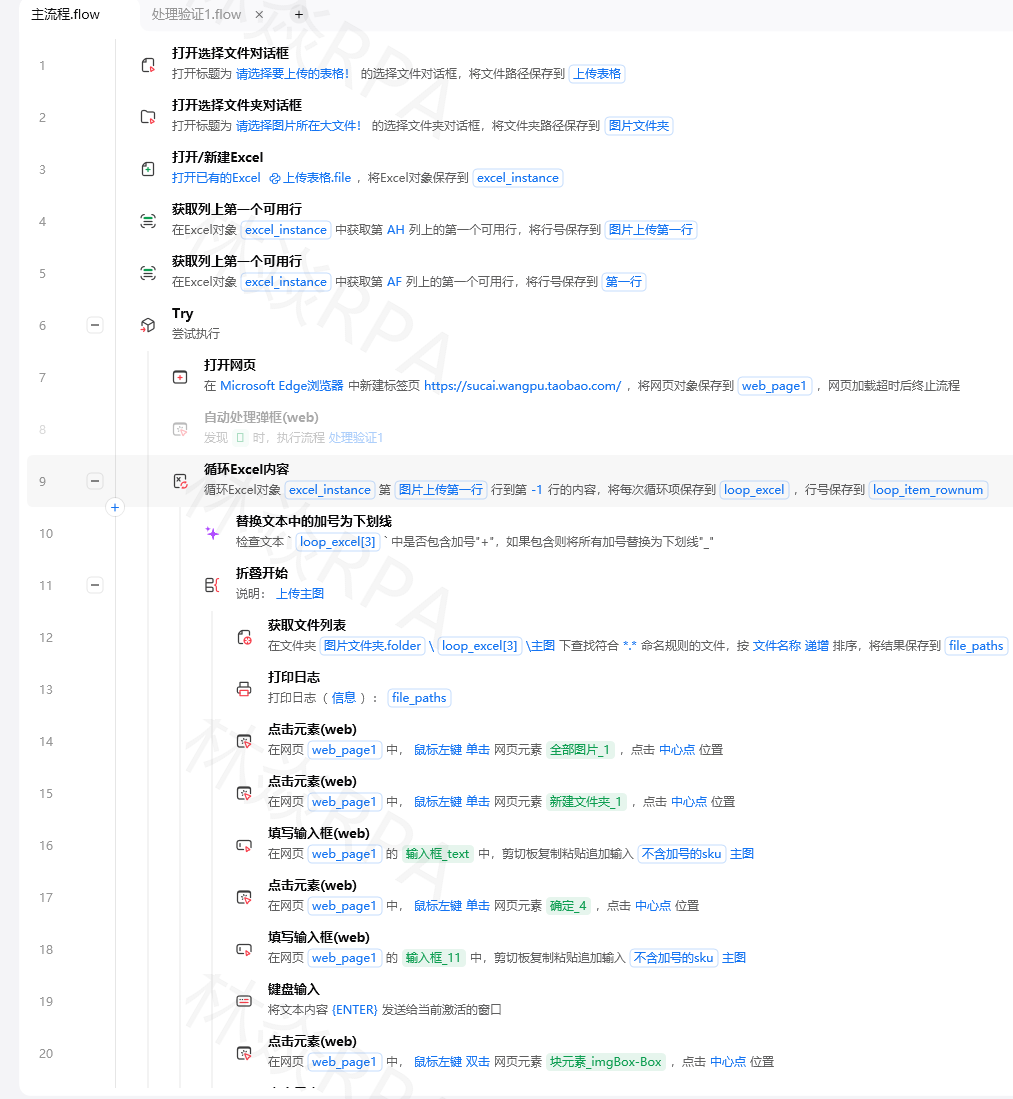
<!-- ❌ 精确匹配动态class -->
//div[@class="product-card_active_3f2a"]

<!-- ✅ 匹配稳定前缀 -->
//div[contains(@class, "product-card")]

<!-- ✅ 匹配data属性(更稳定) -->
//div[@data-component="product-card"]

北京人形旗下天工造物具身智能开源社区,聚焦具身天工与慧思开物两大平台
更多推荐
 9
9 0
0- 0


 已为社区贡献4条内容

所有评论(0)