React Native 滚动到页面指定位置
·
需求
页面最上方显示一行关键词,点击某个关键词,页面自动定位到该关键词的位置。
效果
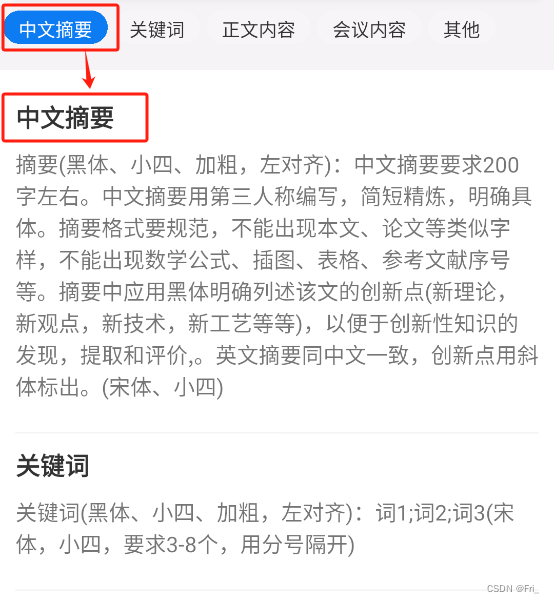
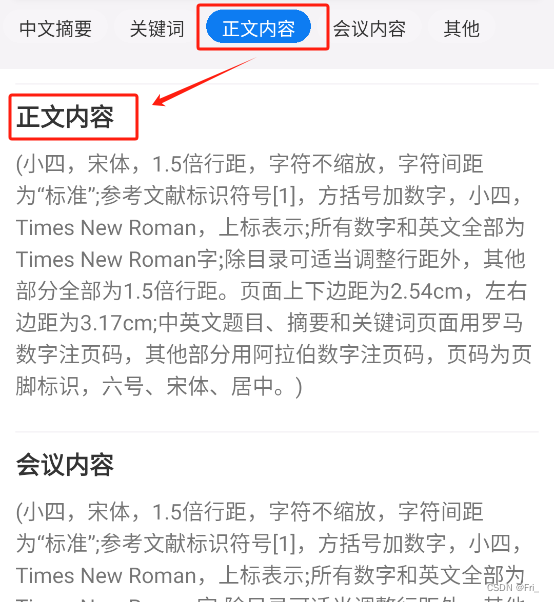
实现步骤
1. 在渲染需要滚动到的指定位置的 View 标签,通过 onLayout 的 e.nativeEvent.layout.y 获取每个关键词距离页面顶部的位置;
2. 给 <ScrollView></ScrollView> 绑定一个 ref = {scrollViewRef} ;
3. 再通过 scrollViewRef.current.scrollTo({y: layoutY[i], animated: true}); 滚动到对应位置,y 是刚才获取到的 e.nativeEvent.layout.y 。
实现代码
import React, {useRef, useState} from 'react';
import {StyleSheet, ScrollView, View, TouchableOpacity, Text} from 'react-native';

export const ScrollDemo = () => {
  let data: any = [
    {
      title: '中文摘要',
      text: '摘要(黑体、小四、加粗,左对齐):中文摘要要求200字左右。中文摘要用第三人称编写,简短精炼,明确具体。摘要格式要规范,不能出现本文、论文等类似字样,不能出现数学公式、插图、表格、参考文献序号等。摘要中应用黑体明确列述该文的创新点(新理论,新观点,新技术,新工艺等等),以便于创新性知识的发现,提取和评价,。英文摘要同中文一致,创新点用斜体标出。(宋体、小四)',
    },
    {
      title: '关键词',
      text: '关键词(黑体、小四、加粗,左对齐):词1;词2;词3(宋体,小四,要求3-8个,用分号隔开)',
    },
    {
      title: '正文内容',
      text: '(小四,宋体,1.5倍行距,字符不缩放,字符间距为“标准”;参考文献标识符号[1],方括号加数字,小四,Times New Roman,上标表示;所有数字和英文全部为Times New Roman字;除目录可适当调整行距外,其他部分全部为1.5倍行距。页面上下边距为2.54cm,左右边距为3.17cm;中英文题目、摘要和关键词页面用罗马数字注页码,其他部分用阿拉伯数字注页码,页码为页脚标识,六号、宋体、居中。)',
    },
    {
      title: '会议内容',
      text: '(小四,宋体,1.5倍行距,字符不缩放,字符间距为“标准”;参考文献标识符号[1],方括号加数字,小四,Times New Roman,上标表示;所有数字和英文全部为Times New Roman字;除目录可适当调整行距外,其他部分全部为1.5倍行距。页面上下边距为2.54cm,左右边距为3.17cm;中英文题目、摘要和关键词页面用罗马数字注页码,其他部分用阿拉伯数字注页码,页码为页脚标识,六号、宋体、居中。)',
    },
    {
      title: '其他',
      text: '(小四,宋体,1.5倍行距,字符不缩放,字符间距为“标准”;参考文献标识符号[1],方括号加数字,小四,Times New Roman,上标表示;所有数字和英文全部为Times New Roman字;除目录可适当调整行距外,其他部分全部为1.5倍行距。页面上下边距为2.54cm,左右边距为3.17cm;中英文题目、摘要和关键词页面用罗马数字注页码,其他部分用阿拉伯数字注页码,页码为页脚标识,六号、宋体、居中。)',
    },
  ];

  const [selectedIndex, setSelectedIndex] = useState(0);
  const [layoutY, setLayoutY] = useState([]);
  const scrollViewRef = useRef();

  // 渲染tab栏
  const tabItem = data?.map((v: any, i: number) => {
    // 点击滚动到指定位置
    const toKeyword = (i: number) => {
      setSelectedIndex(i);
      scrollViewRef.current.scrollTo({y: layoutY[i], animated: true});
    };
    return (
      <TouchableOpacity onPress={() => toKeyword(i)}>
        <Text
          style={[
            styles.tabText,
            i === selectedIndex
              ? {backgroundColor: '#0D7CF2', color: '#ffffff'}
              : {backgroundColor: '#F7F5F8'},
          ]}>
          {v.title}
        </Text>
      </TouchableOpacity>
    );
  });

  // 渲染页面内容
  const dataItem = data.map((v: any, i: any) => {
    // 获取每个关键词在页面中的位置
    const getLayoutY = (e: any, i: number) => {
      let copy: any = [...layoutY];
      copy[i] = e.nativeEvent.layout.y;
      setLayoutY(copy);
    };
    return (
      <View style={styles.detailItem} onLayout={e => getLayoutY(e, i)}>
        <Text style={styles.detailTitle}>{v.title}</Text>
        <View style={styles.detailContent}>
          <Text>{v.text}</Text>
        </View>
      </View>
    );
  });

  return (
    <View>
      <ScrollView horizontal={true} showsHorizontalScrollIndicator={false}>
        <View style={styles.tabItemView}>{tabItem}</View>
      </ScrollView>
      <ScrollView
        ref={scrollViewRef}
        style={styles.detailView}
        showsVerticalScrollIndicator={false}>
        {dataItem}
      </ScrollView>
    </View>
  );
};

const styles = StyleSheet.create({
  detailView: {
    padding: 10,
    paddingBottom: 40,
    overflow: 'scroll',
    backgroundColor: '#ffffff',
  },
  tabItemView: {
    width: '100%',
    flex: 1,
    display: 'flex',
    flexDirection: 'row',
    alignItems: 'center',
    justifyContent: 'space-between',
    borderColor: '#F5F3F6',
    borderBottomWidth: 1,
    marginBottom: 10,
    flexWrap: 'nowrap',
  },
  tabText: {
    fontSize: 12,
    color: '#333333',
    paddingTop: 4,
    paddingBottom: 4,
    paddingLeft: 10,
    paddingRight: 10,
    marginTop: 0,
    marginBottom: 6,
    marginLeft: 2,
    marginRight: 2,
    borderRadius: 16,
  },
  detailItem: {
    borderBottomColor: '#F5F3F6',
    borderBottomWidth: 1,
  },
  detailTitle: {
    fontSize: 16,
    fontWeight: 'bold',
    marginBottom: 10,
    marginTop: 10,
    color: '#333333',
  },
  detailContent: {
    marginBottom: 20,
  },
});

北京人形旗下天工造物具身智能开源社区,聚焦具身天工与慧思开物两大平台
更多推荐
 3
3 0
0- 0


 已为社区贡献1条内容

所有评论(0)