识别和定位图像中的拨动开关
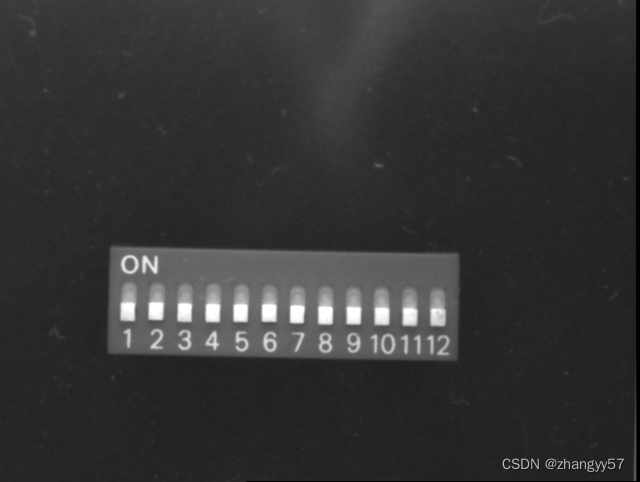
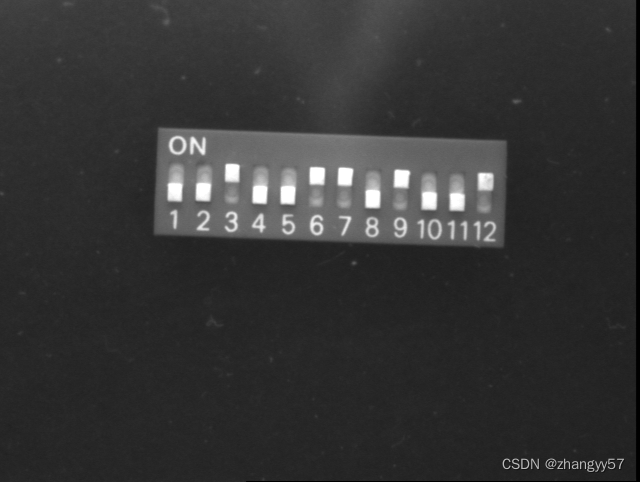
以下代码是使用HALCON软件编写的,HALCON是一款用于图像处理、机器视觉和图像分析的高级软件工具。代码的主要功能是创建一个基于组件的机器视觉模型,用于识别和定位图像中的拨动开关(dip switch)
dev_update_off ()
dev_set_draw (‘margin’)
read_image (ModelImage, ‘dip_switch/dip_switch_model’)
get_image_size (ModelImage, Width, Height)
dev_close_window ()
dev_open_window (0, 0, Width, Height, ‘black’, WindowHandle)
set_display_font (WindowHandle, 14, ‘mono’, ‘true’, ‘false’)
- Define the initial components
gen_rectangle2 (InitialComponents, 265, 138, -0.02, 23, 13)
gen_rectangle2 (InitialComponent, 342, 286, -0.02, 168, 13)
concat_obj (InitialComponents, InitialComponent, InitialComponents)
for I := 0 to 11 by 1
gen_rectangle2 (InitialComponent, 311 + I * 0.5, 128 + I * 28.2, 0, 10, 12)
concat_obj (InitialComponents, InitialComponent, InitialComponents)
endfor
dev_set_colored (12)
dev_display (ModelImage)
dev_display (InitialComponents)
dev_set_color (‘yellow’)
disp_message (WindowHandle, ‘Model image and’, ‘image’, 20, 20, ‘yellow’, ‘false’)
disp_message (WindowHandle, ‘input regions describing the initial components’, ‘image’, 40, 20, ‘yellow’, ‘false’)
disp_message (WindowHandle, ‘Press mouse button to continue’, ‘window’, 450, 20, ‘yellow’, ‘false’)
get_mbutton (WindowHandle, Row1, Column1, Button1) - Get the training images
gen_empty_obj (TrainingImages)
for I := 1 to 12 by 1
read_image (TrainingImage, ‘dip_switch/dip_switch_training_’ + I$‘02’)
concat_obj (TrainingImages, TrainingImage, TrainingImages)
dev_display (TrainingImage)
disp_message (WindowHandle, ‘Training image ’ + I + ’ of 12’, ‘image’, 20, 20, ‘yellow’, ‘false’)
disp_message (WindowHandle, ‘Press mouse button to continue’, ‘window’, 450, 20, ‘yellow’, ‘false’)
get_mbutton (WindowHandle, Row2, Column2, Button2)
endfor - The component-based matching uses the contours of the components
- as features for the matching. In order to make sure that only significant
- features are involved in the matching the parameters ContrastLow,
- ContrastHigh, and MinSize can be passed to the training. To inspect the
- effect of different values for these three parameters, and hence to find
- the optimum values for a certain application, the following two lines of
- code can be used:
- add_channels (InitialComponents, ModelImage, ModelImageInitComp)
- gen_initial_components (ModelImageInitComp, InitialComponentEdges, 45, 45, 30, ‘connection’, [], [])
- Extract the model components and train the relations
- (This may take a few minutes!)
dev_display (ModelImage)
disp_message (WindowHandle, ‘Train the model components…’, ‘image’, 20, 20, ‘yellow’, ‘false’)
disp_message (WindowHandle, ‘(This may take a few minutes)’, ‘image’, 40, 20, ‘yellow’, ‘false’)
dev_set_check (‘~give_error’)
dev_error_var (Error, 1)
read_training_components (‘train_dip_switch.ct’, ComponentTrainingID)
dev_error_var (Error, 0)
dev_set_check (‘give_error’)
if (Error != H_MSG_TRUE)
train_model_components (ModelImage, InitialComponents, TrainingImages, ModelComponents, 45, 45, 30, 0.95, -1, -1, rad(20), ‘speed’, ‘rigidity’, 0.2, 0.5, ComponentTrainingID)- Ignore writing errors as they are not critical for this example
dev_set_check (‘~give_error’)
write_training_components (ComponentTrainingID, ‘train_dip_switch.ct’)
dev_set_check (‘give_error’)
endif
dev_set_color (‘yellow’)
dev_display (ModelImage)
disp_message (WindowHandle, ‘Result of the training:’, ‘image’, 20, 20, ‘yellow’, ‘false’)
disp_message (WindowHandle, ’ 1) Final model components’, ‘image’, 40, 20, ‘yellow’, ‘false’)
dev_set_colored (12)
get_training_components (ModelComponents, ComponentTrainingID, ‘model_components’, ‘model_image’, ‘false’, RowRef, ColumnRef, AngleRef, ScoreRef)
dev_display (ModelComponents)
disp_message (WindowHandle, ‘Press mouse button to continue’, ‘window’, 450, 20, ‘yellow’, ‘false’)
get_mbutton (WindowHandle, Row3, Column3, Button3)
count_obj (ModelComponents, NumComp)
for I := 0 to NumComp - 1 by 1
dev_display (ModelImage)
disp_message (WindowHandle, ‘Result of the training:’, ‘image’, 20, 20, ‘yellow’, ‘false’)
disp_message (WindowHandle, ’ 1) Final model components’, ‘image’, 40, 20, ‘yellow’, ‘false’)
disp_message (WindowHandle, ’ 2) Relations with respect to component ’ + I, ‘image’, 60, 20, ‘yellow’, ‘false’)
dev_set_colored (12)
get_component_relations (Relations, ComponentTrainingID, I, ‘model_image’, Row, Column, Phi, Length1, Length2, AngleStart, AngleExtent)
dev_display (Relations)
disp_message (WindowHandle, ‘Press mouse button to continue’, ‘window’, 450, 20, ‘yellow’, ‘false’)
get_mbutton (WindowHandle, Row4, Column4, Button4)
endfor
- Ignore writing errors as they are not critical for this example
- Add small tolerances to the automatically derived relations in order
- to receive a higher robustness.
modify_component_relations (ComponentTrainingID, ‘all’, ‘all’, 0, rad(4)) - Create the component model based on the training result.
- The minimum score for the model components should be set individually.
- On the one hand the print on the module may be occluded, which requires
- a low minimum score. On the other hand the switches must be distinguished
- from from the background, which requires to set the corresponding minimum
- score values to higher values.
MinScoreComp := gen_tuple_const(13,0.8)
MinScoreComp[0] := 0.4
dev_display (ModelImage)
disp_message (WindowHandle, ‘Create the component model…’, ‘image’, 20, 20, ‘yellow’, ‘false’) - Automatically determine the optimum number of pyramid levels for the
- switches. However, for the print on the module 4 pyramid levels
- instead of the automatically determined 3 levels are used to speed up
- the search.
NumLevelsComp := gen_tuple_const(13,0)
NumLevelsComp[0] := 4
create_trained_component_model (ComponentTrainingID, 0, rad(360), 10, MinScoreComp, NumLevelsComp, ‘auto’, ‘none’, ‘use_polarity’, ‘false’, ComponentModelID, RootRanking)
get_component_model_tree (Tree, Relations, ComponentModelID, RootRanking, ‘model_image’, StartNode, EndNode, Row, Column, Phi, Length1, Length2, AngleStart, AngleExtent)
dev_display (ModelImage)
disp_message (WindowHandle, ‘Component model’, ‘image’, 20, 20, ‘yellow’, ‘false’)
dev_set_colored (12)
dev_display (Tree)
dev_display (Relations)
disp_message (WindowHandle, ‘Press mouse button to continue’, ‘window’, 450, 20, ‘yellow’, ‘false’)
get_mbutton (WindowHandle, Row5, Column5, Button5)
wait_seconds (0.5)
clear_training_components (ComponentTrainingID) - Find the component model in a run-time image
ImgNo := 1
Button := 0
while (Button != 1)
read_image (SearchImage, ‘dip_switch/dip_switch_’ + ImgNo′02d′)countseconds(Seconds1)findcomponentmodel(SearchImage,ComponentModelID,RootRanking,0,rad(360),0,0,0.5,′stopsearch′,′prunebranch′,′none′,MinScoreComp,′leastsquares′,0,0.9,ModelStart,ModelEnd,Score,RowComp,ColumnComp,AngleComp,ScoreComp,ModelComp)countseconds(Seconds2)devdisplay(SearchImage)NumFound:=∣ModelStart∣Time:=(Seconds2−Seconds1)∗1000dispmessage(WindowHandle,NumFound+′object(s)foundin′+Time'02d') count_seconds (Seconds1) find_component_model (SearchImage, ComponentModelID, RootRanking, 0, rad(360), 0, 0, 0.5, 'stop_search', 'prune_branch', 'none', MinScoreComp, 'least_squares', 0, 0.9, ModelStart, ModelEnd, Score, RowComp, ColumnComp, AngleComp, ScoreComp, ModelComp) count_seconds (Seconds2) dev_display (SearchImage) NumFound := |ModelStart| Time := (Seconds2 - Seconds1) * 1000 disp_message (WindowHandle, NumFound + ' object(s) found in ' + Time′02d′)countseconds(Seconds1)findcomponentmodel(SearchImage,ComponentModelID,RootRanking,0,rad(360),0,0,0.5,′stopsearch′,′prunebranch′,′none′,MinScoreComp,′leastsquares′,0,0.9,ModelStart,ModelEnd,Score,RowComp,ColumnComp,AngleComp,ScoreComp,ModelComp)countseconds(Seconds2)devdisplay(SearchImage)NumFound:=∣ModelStart∣Time:=(Seconds2−Seconds1)∗1000dispmessage(WindowHandle,NumFound+′object(s)foundin′+Time’4.2f’ + ’ ms’, ‘image’, 20, 20, ‘yellow’, ‘false’)
for Match := 0 to |ModelStart| - 1 by 1
get_found_component_model (FoundComponents, ComponentModelID, ModelStart, ModelEnd, RowComp, ColumnComp, AngleComp, ScoreComp, ModelComp, Match, ‘false’, RowCompInst, ColumnCompInst, AngleCompInst, ScoreCompInst)
dev_set_colored (12)
dev_display (FoundComponents)
visualize_dip_switch_match (RowCompInst, ColumnCompInst, AngleCompInst, RowRef, ColumnRef, AngleRef, WindowHandle, Match)
endfor
disp_message (WindowHandle, ‘Press mouse button to stop’, ‘window’, 450, 20, ‘yellow’, ‘false’)
ImgNo := ImgNo + 1
if (ImgNo > 13)
ImgNo := 1
endif
dev_error_var (Error, 1)
dev_set_check (‘~give_error’)
get_mposition (WindowHandle, R, C, Button)
dev_error_var (Error, 0)
dev_set_check (‘give_error’)
if (Error != H_MSG_TRUE)
Button := 0
endif -
stop ()
endwhile
clear_component_model (ComponentModelID)
以下是代码的详细解释:
初始化和显示模型图像以及输入区域:
dev_update_off():关闭设备更新,以提高性能。
dev_set_draw(‘margin’):设置绘图边界。
read_image(ModelImage, …):读取拨动开关的模型图像。
get_image_size(…):获取模型图像的尺寸。
dev_open_window(…):打开一个窗口来显示图像。
set_display_font(…):设置显示字体。
定义初始组件:
使用gen_rectangle2函数生成初始组件的矩形区域。
使用concat_obj函数将这些矩形区域合并为一个对象。
读取训练图像并显示:
使用循环读取12张拨动开关的训练图像。
使用dev_display函数显示每张训练图像。
训练模型组件:
使用read_training_components函数读取训练组件。
使用train_model_components函数训练模型组件,这可能需要几分钟时间。
显示训练结果:
使用get_training_components函数获取训练后的组件。
使用dev_display函数显示训练后的组件。
显示组件关系:
使用循环和get_component_relations函数获取并显示每个组件的关系。
修改组件关系以增加鲁棒性:
使用modify_component_relations函数修改关系,增加容忍度。
创建经过训练的组件模型:
使用create_trained_component_model函数创建组件模型。
使用get_component_model_tree函数获取组件模型树。
显示组件模型:
使用dev_display函数显示组件模型树和关系。
在运行时图像中查找组件模型:
使用循环和find_component_model函数在一系列图像中查找组件模型。
使用dev_display函数显示搜索图像和找到的组件模型。
使用visualize_dip_switch_match函数可视化匹配结果。
清理:
使用clear_training_components和clear_component_model函数清理训练组件和组件模型。
总的来说,这段代码实现了一个完整的机器视觉工作流程,包括图像读取、组件定义、训练、显示结果、关系获取、模型创建和模型匹配。这可以用于自动化的质量控制、装配线检查或任何需要识别和定位特定组件的场景。

北京人形旗下天工造物具身智能开源社区,聚焦具身天工与慧思开物两大平台
更多推荐
 24
24 0
0- 0


 已为社区贡献1条内容

所有评论(0)